
Setting up default Marketplace Stock
Before you onboard any vendors, you will need to create a Marketplace Stock for inventory.
There will be a default stock associated with a default source upon first use, however this default stock cannot be selected when creating new Sources - so therefore a new Stock must be created. In this case, we call the new stock "Marketplace Stock".
-
Log in to the Marketplace Admin Portal, and from the left menu, select Stores > Inventory > Stocks.
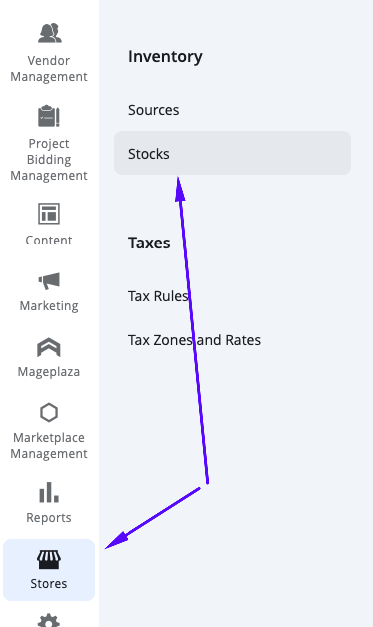
-
This page will list all of the stocks available. If there is not already a Marketplace Stock there, you can simply select Add New Stock.
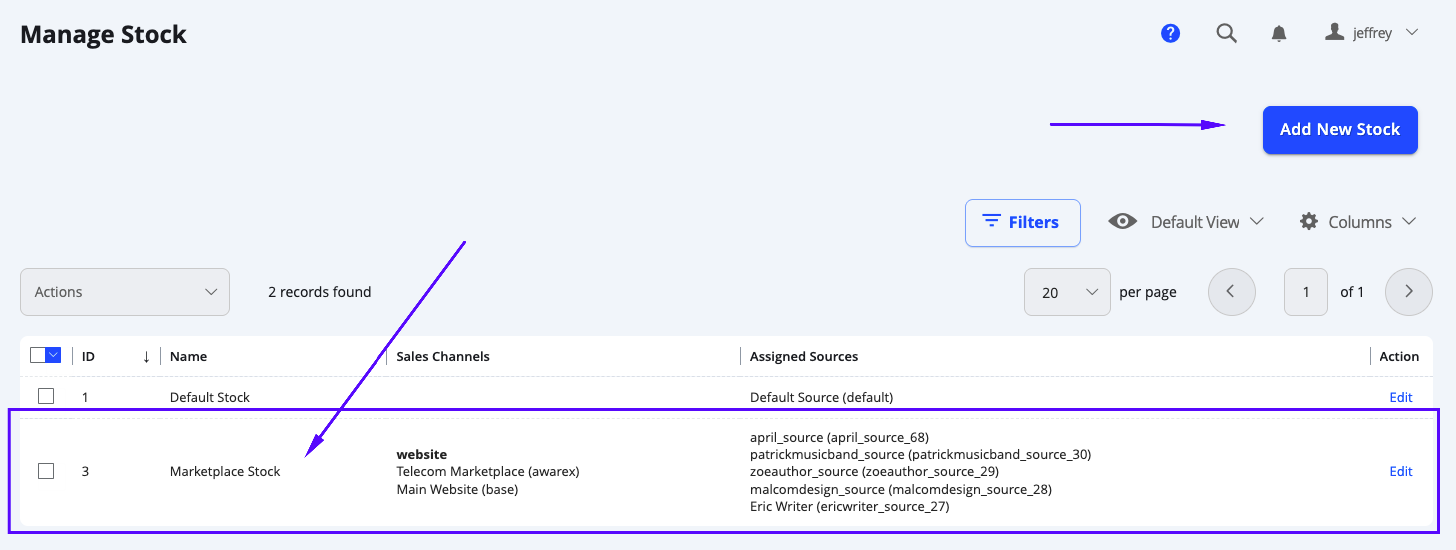
-
When you have loaded the New Stock page, there are 2 sections that need configuration.
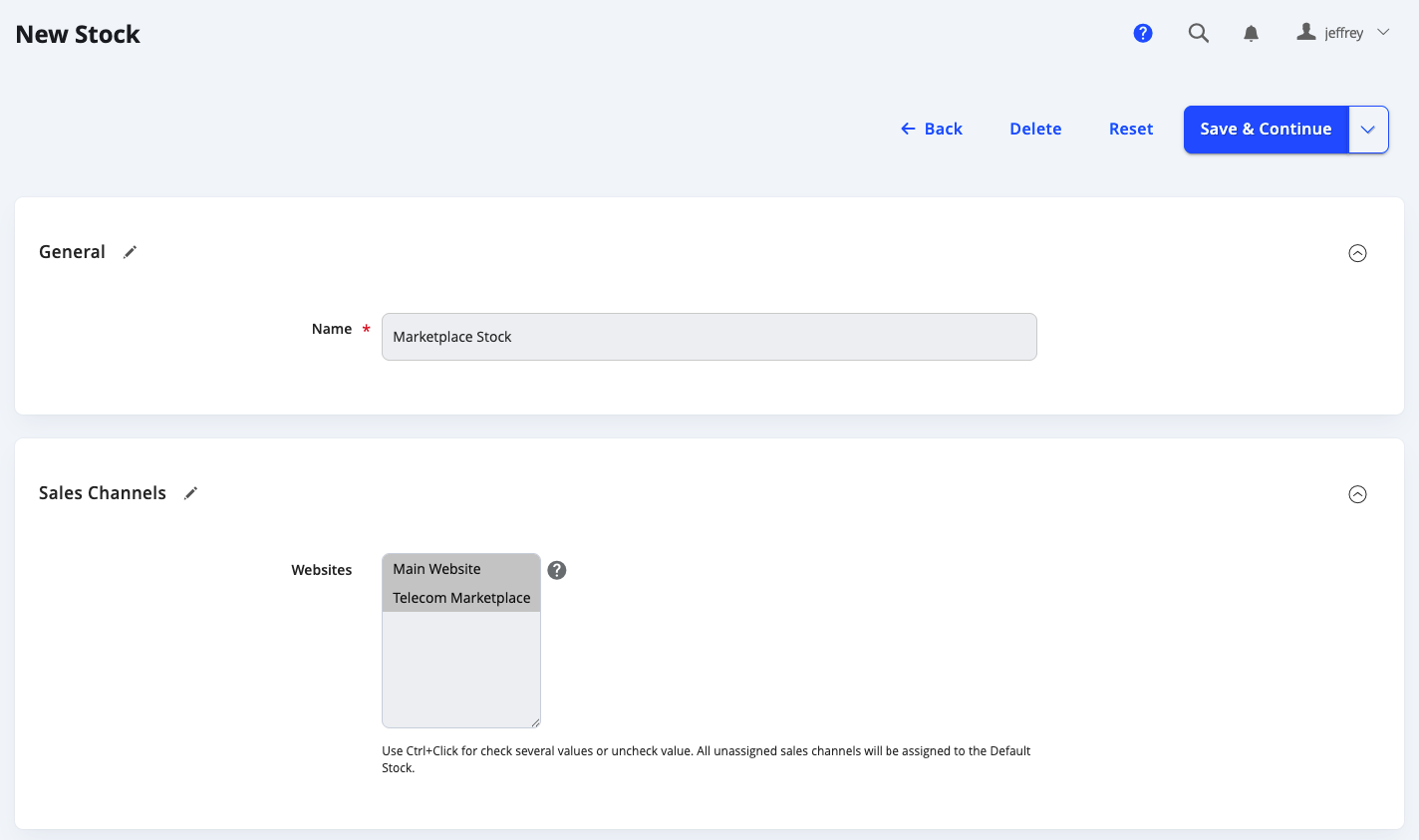
General
- Name: Input Marketplace Stock
Sales Channels - Websites: Select all websites available - as this will become the default stock for these websites.
Sources - Assign Sources: You can typically ignore this if you have not yet onboarded any vendors on the platform (including your own store as a vendor).
- Name: Input Marketplace Stock
-
When completed, please select Save & Continue.
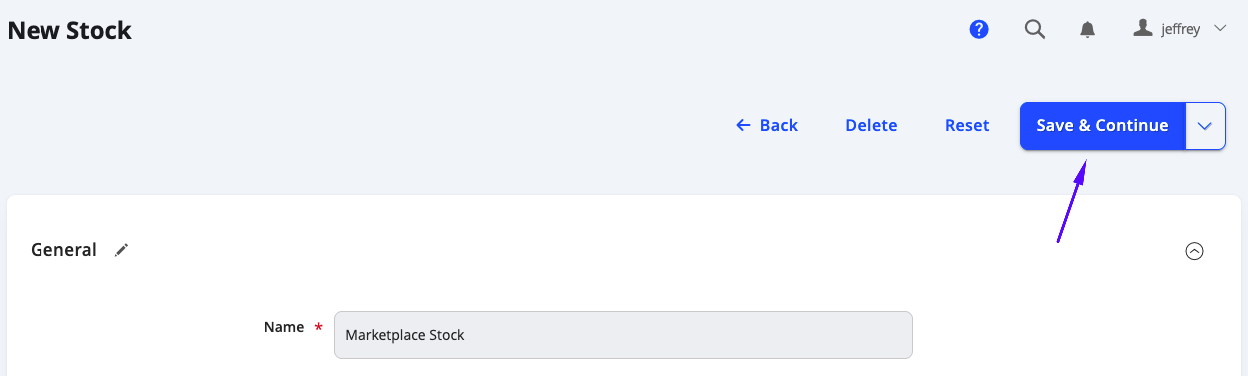
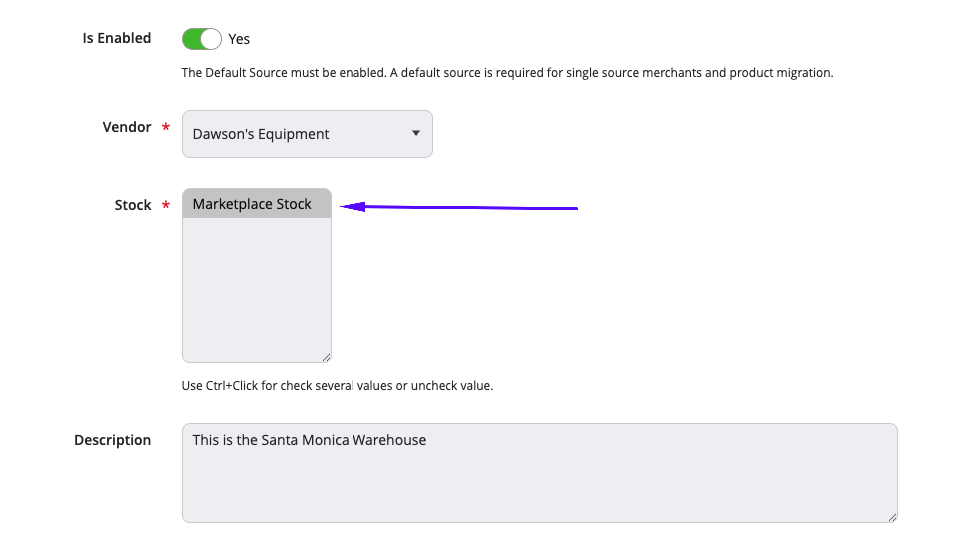
Once completed, any new vendor created and approved will have their sources available to select Marketplace Stock (those automatically created after vendor approval will automatically have this option selected).
Updated 17 days ago