
Stripe Subscription Product for Vendor Plans
Ultra Commerce Marketplace offers Marketplace Owners the ability to create Vendor Subscriptions that charge vendors a fee to participate on the marketplace. Vendor Subscriptions are created on the platform using the Vendor Subscription module. Click here to learn how you can **Create a new Vendor Subscription**.
To complete the creation of a Paid Vendor Subscription, you need a Subscription Code from Stripe (Payment Gateway ID).
Please follow the process below to create a new subscription in Stripe, then simply copy and paste in your Subscription Code into the newly created Vendor Subscription Plan in the Marketplace Admin.
Adding a Subscription Product in Stripe
-
Log in to your Marketplace Owner Stripe account
-
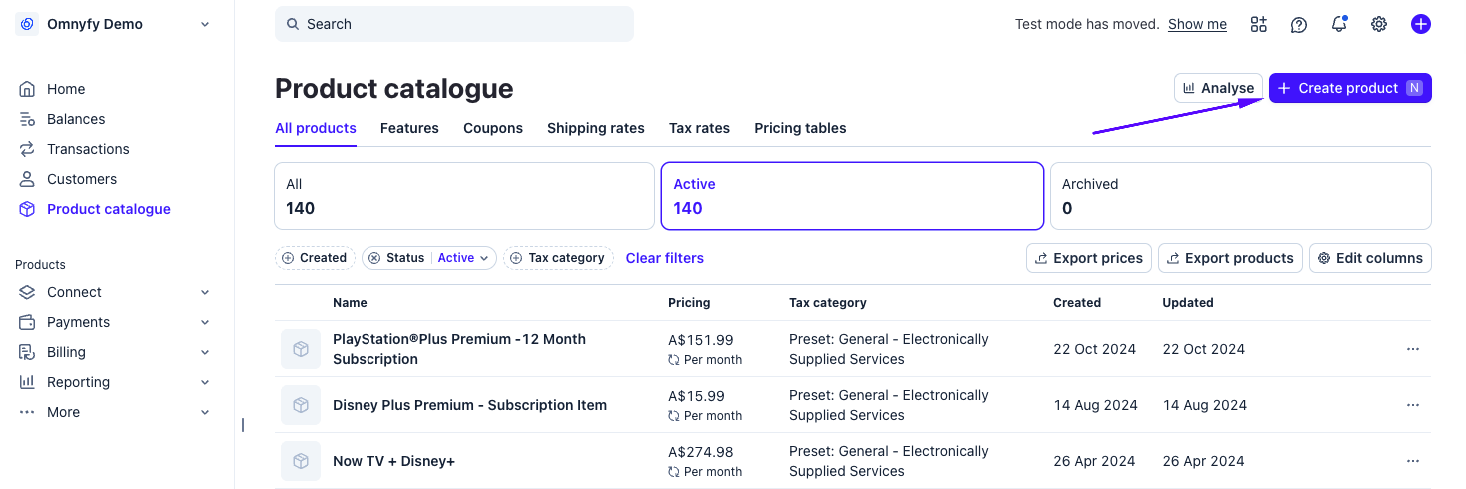
From the left menu, select Products catalogue
-
Click on Create product on the top right
-
A pop up will appear from the right with fields to enter.
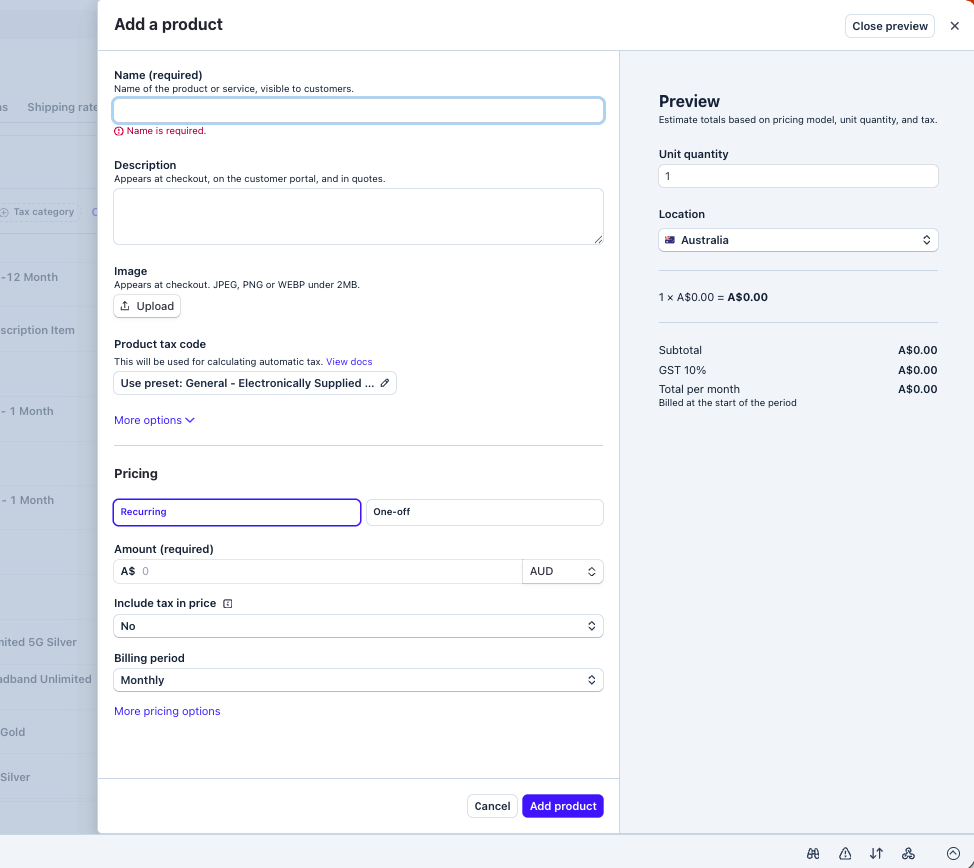
Product Information
The first section the initial product descriptions and tax codes are set.
| Field Name | Notes |
|---|---|
| Name | This is the name of your subscription plan. |
| Description | This is a description of the plan, however this is can be left blank as this is not used on the Marketplace. |
| Image | Upload an image that represents this subscription, however this is can be left blank as this is not used on the Marketplace. |
| Product Tax Code | *** |
Note that this is different from your subscription plan tiers. You may have multiple plans, with each plan having different tiers - similar to Vendor Types EG:
- Retailer Plan
- Bronze Tier
- Silver Tier
- Gold Tier
- Services Plan
- Corporate Plan
- Tier 1
- Tier 2
NOTE
If you are having different tiers with different billing intervals (eg Monthly and Annually), you would need to create those as individual plans too.
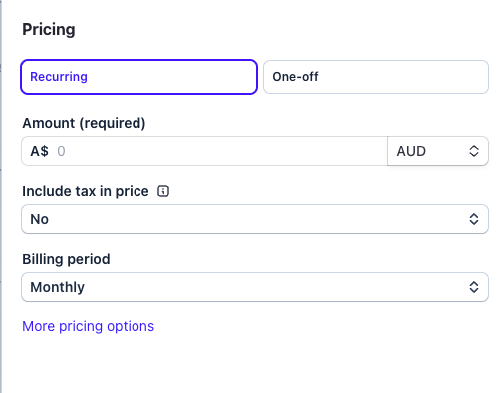
Pricing
sss
| Field Name | Notes |
|---|---|
| Recurring / One Off | Sets if the subscription charges once only, or on a repeat cycle. |
| Amount | Set the pricing of the subscription charge (and currency). Ensure this matches the currency and price from the Vendor Subscription. |
| Include tax in price | Set to Yes if tax is included in the pricing amount (above). |
| Billing Period (only available with Recurring pricing) | This is to determine how frequent the interval charges will be. Here you can select the following:
|
| More Pricing Options | Currently this can be left as is - the advanced options are not used in the Marketplace. |
Preview
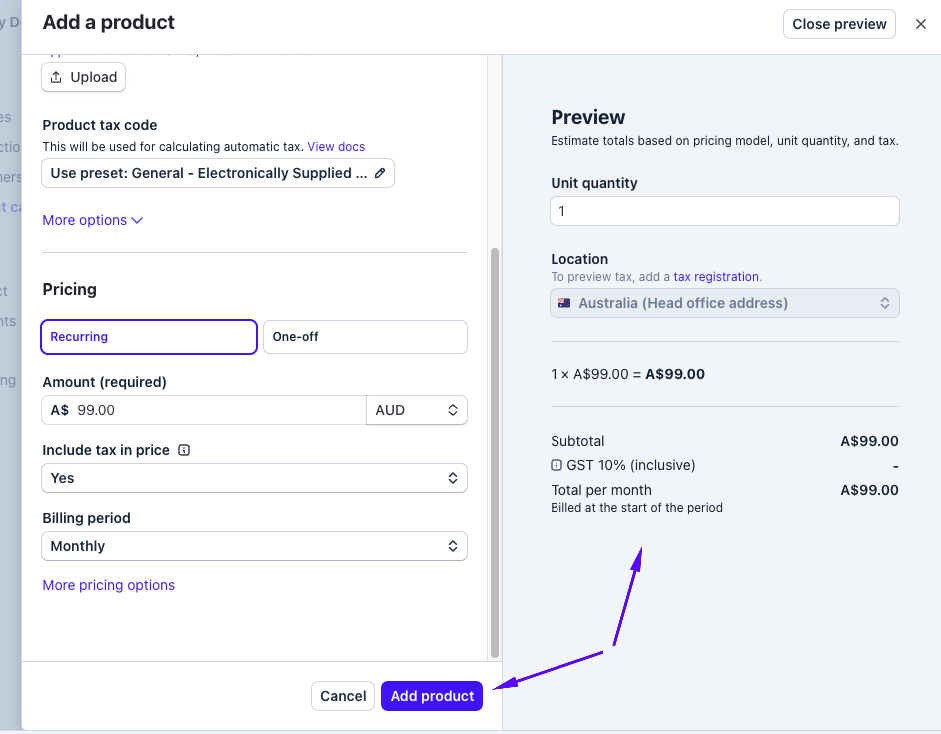
You will see a preview on the right side once you have completed all information. When satisfied, select Add Product at the bottom of the left column.
Adding the Gateway ID to a Vendor Subscription Plans in the Marketplace Admin Portal
Obtaining the Price ID
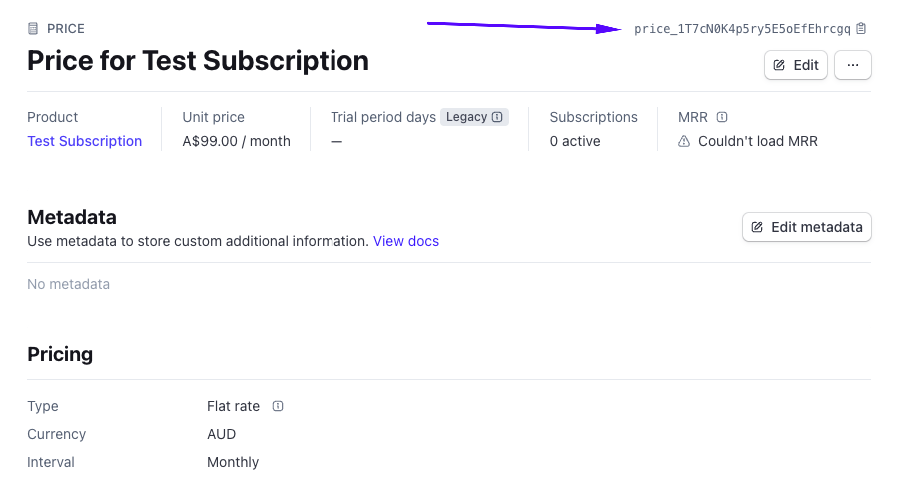
To connect the Stripe product with a Vendor Subscription, you will need to obtain a Price ID and input it in the Subscription Plan from the Vendor Management section.
First, obtain the Price ID from the Stripe Product.
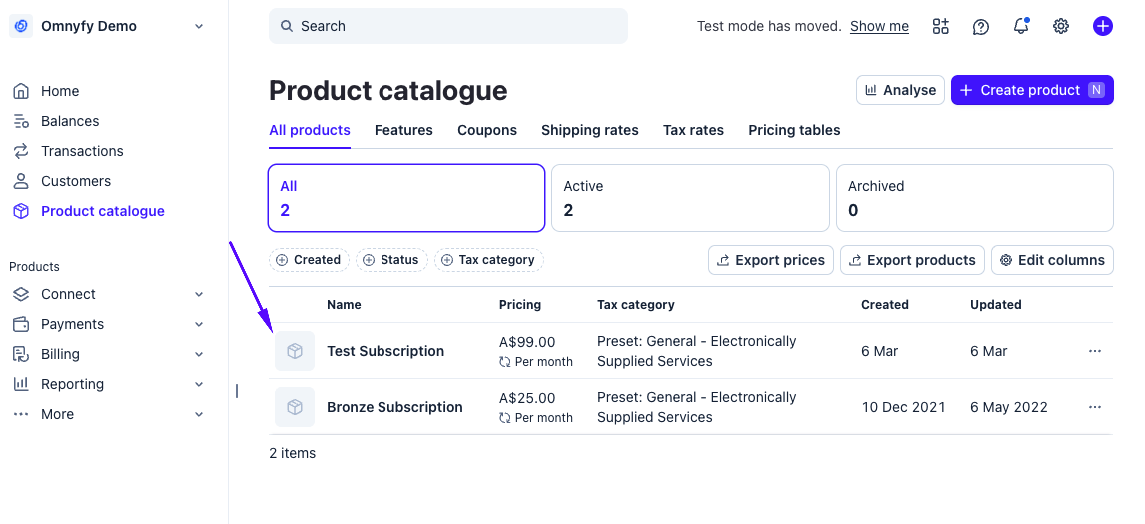
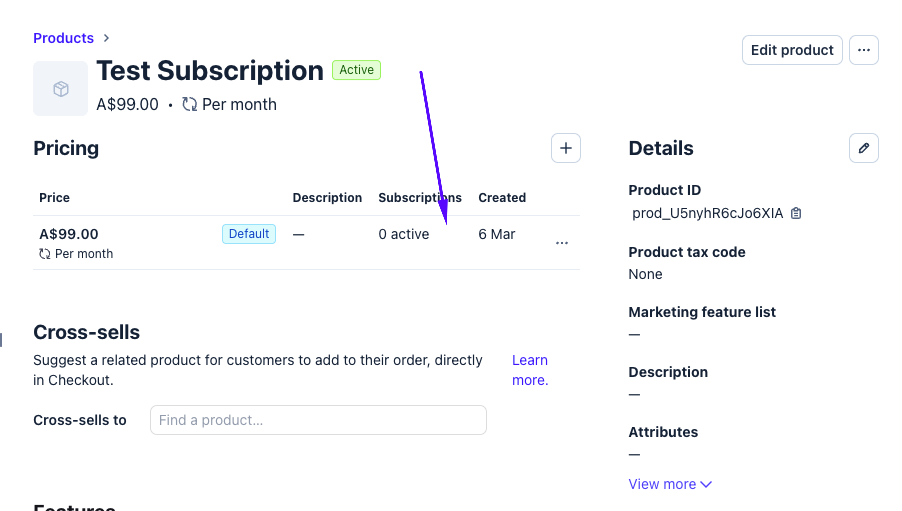
Inside the product, you will find the pricing section. Click on a price row to view the price details.
The Price ID can be found at the top right of the page.
Adding the Price ID to the Vendor Subscription Plan
Once you have the Price ID copied from Stripe, log in to the Marketplace Admin Portal as a Marketplace Owner. Navigate to Vendor Management > Subscriptions > Subscription Plans.
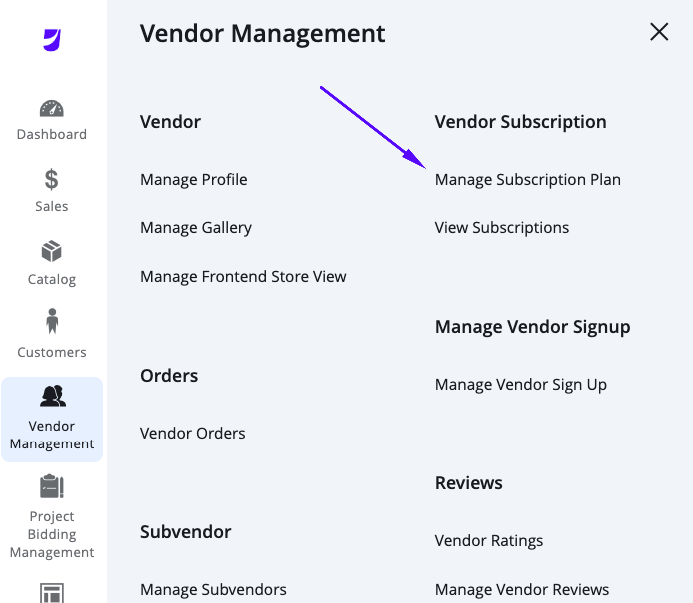
Select an existing Subscription Plan or create a new Plan.
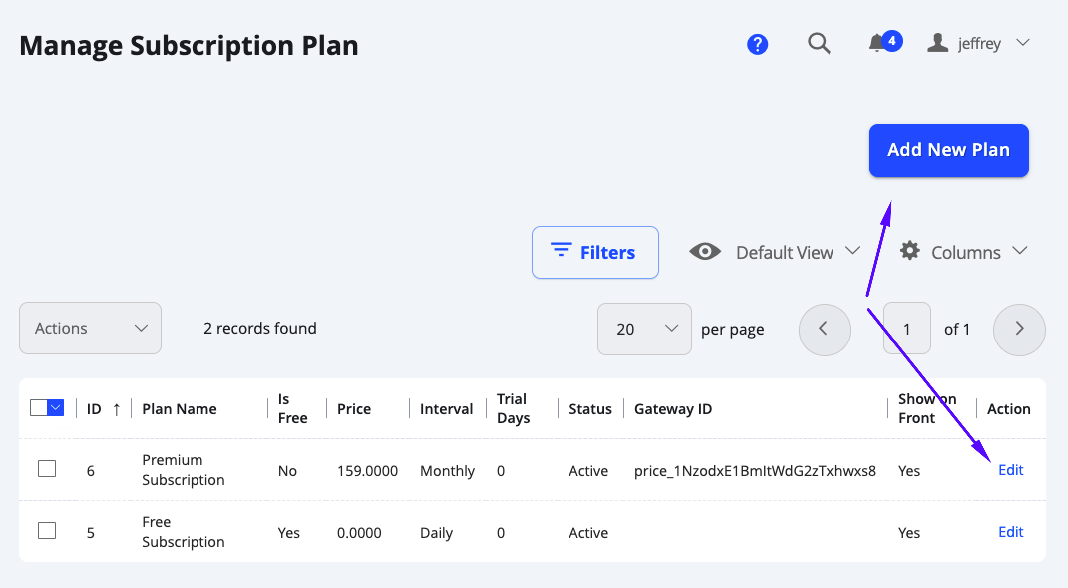
Inside the Subscription Plan details, you can add the Price ID to the plan, as long as the Is Free toggle is set to No.
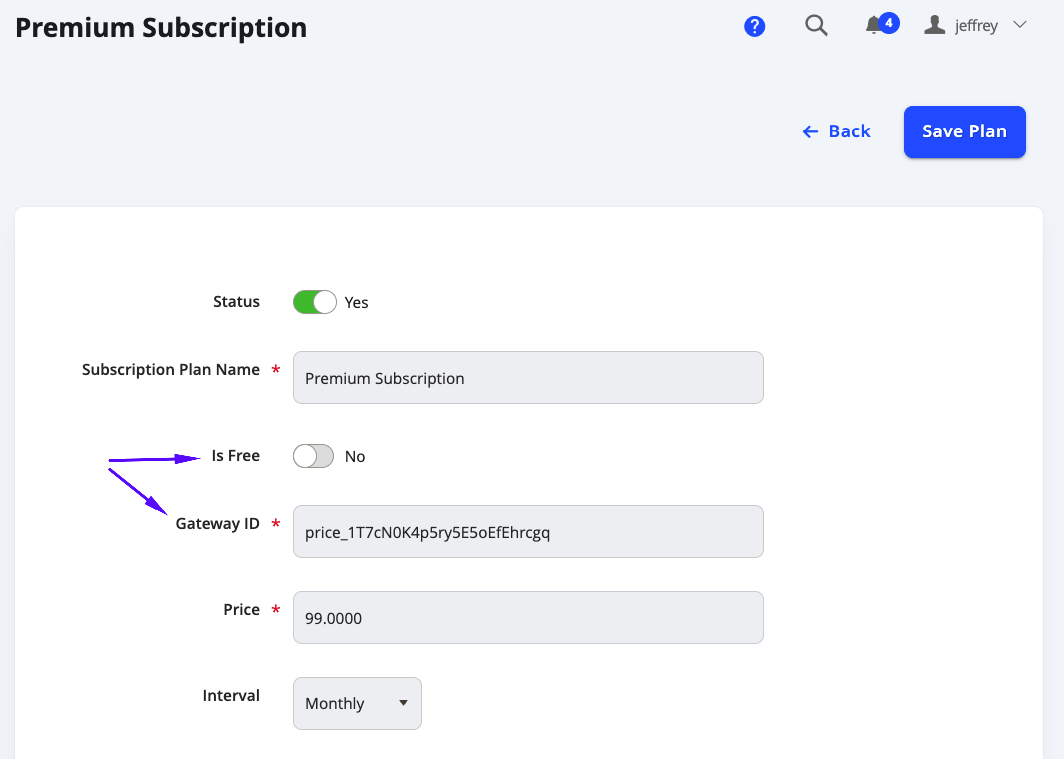
Select Save Plan when complete.
Updated 7 months ago