
Creating Tax Rules
Tax rules incorporate a combination of product class, customer class and tax rate. Each customer is assigned to a customer class, and each product is assigned a product class. The platform analyses the shopping cart of each customer and calculates the appropriate tax according to the customer and product classes, and the region (based on the customer’s shipping address, billing address or shipping origin).
-
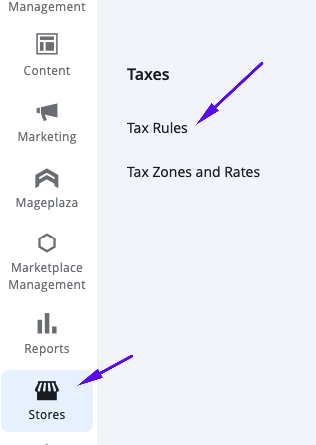
From the Marketplace Admin Portal, navigate to the left menu and select Stores > Taxes > Tax Rules.
-
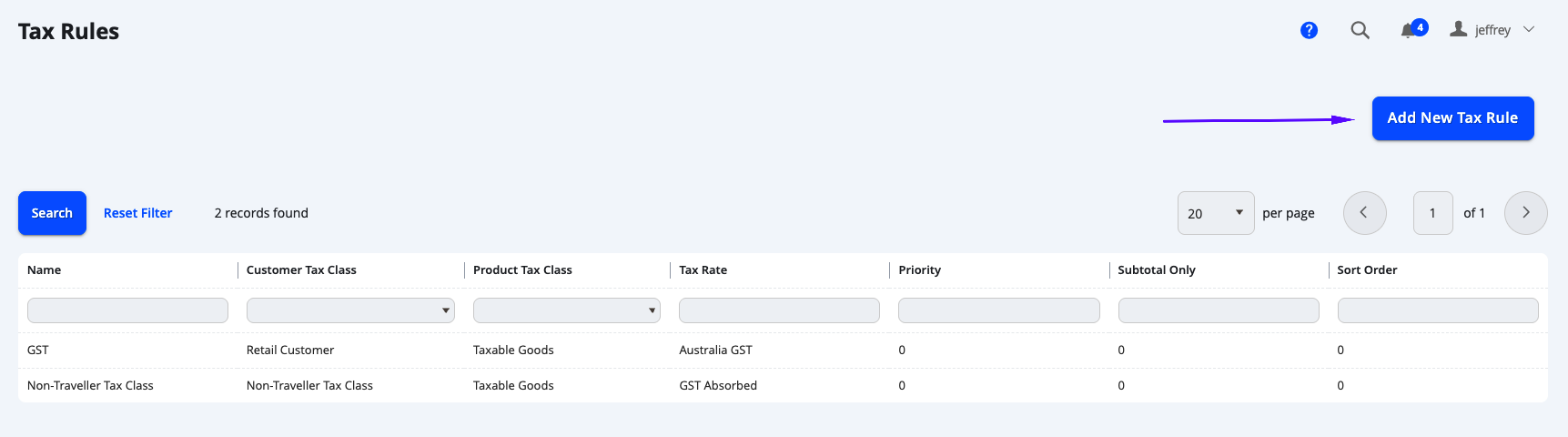
Here you will see a table of existing tax rules. From the top right, you can select Add New Tax Rule.
-
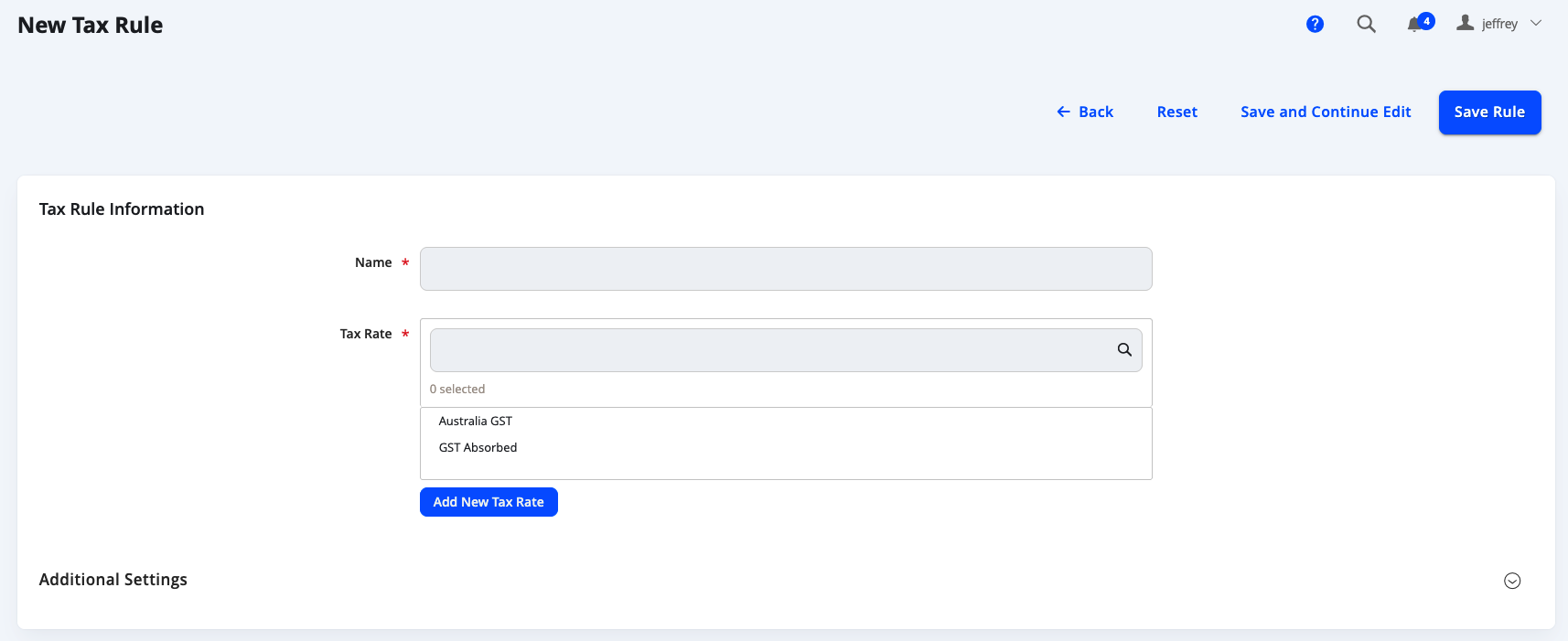
Enter the details for the new tax rule.
| Field Name | Notes |
|---|---|
| TAX RULE INFORMATION | |
| Name | The name for the Tax Rule. |
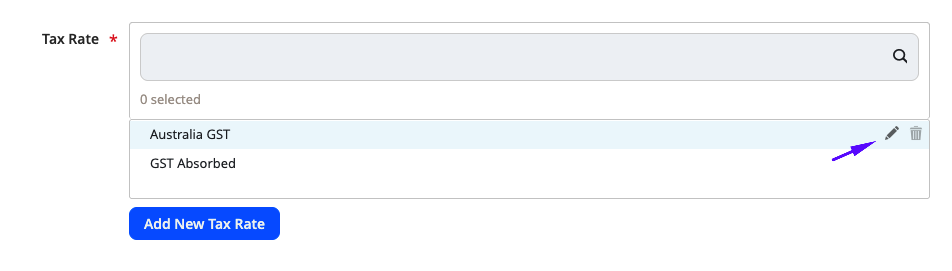
| Tax Rate | Choose the Tax Rates that applies to the rule. You can also edit an existing Tax Rate on hovering over the tax rate, and selecting the pencil icon:
You can also choose to Add New Tax Rates from here. |
| ADDITIONAL SETTINGS | Select this to open up more configurations that are available. |
| Customer Tax Class | You can choose, add or edit existing customer classes from here. |
| Product Tax Class | You can choose, add or edit existing product tax classes from here. These are the options when creating a product on which tax rate/rule to apply for it. |
| Priority | When more than one tax applies, enter a number to indicate the priority of this tax for Priority. If two tax rules with the same priority apply, the taxes are added together. If two taxes with different priority settings apply, the taxes are compounded. Tax rates at the same priority are added, others are compounded. |
| Calculate Off Subtotal Only | If you want taxes to be based on the order subtotal, select the Calculate off Subtotal Only checkbox. |
| Sort Order | For Sort Order, enter a number to indicate the order of this tax rule when listed with others. |
| IMPORT / EXPORT TAX RATES | |
| Import Tax Rates | Use this to Import a CSV to import Tax Rates to the Marketplace, with the default fields required for Tax rates. |
| Export Tax Rates | Use this to Export the current Tax Rates on the Marketplace, with the fields as per the default fields required for Tax Rates. |
-
Once you have completed populating all details, select Save Rule (or Save and Continue Edit if you wish to stay on this page and make further configurations for this Tax Rule).
Updated 5 months ago