
1. Marketplace Set Up - Configuring Easyship
Marketplace Configuration
In order to use this shipping method the Marketplace must be using "Per Vendor" configuration for shipping, please see our shipping calculation guide for how to set this.
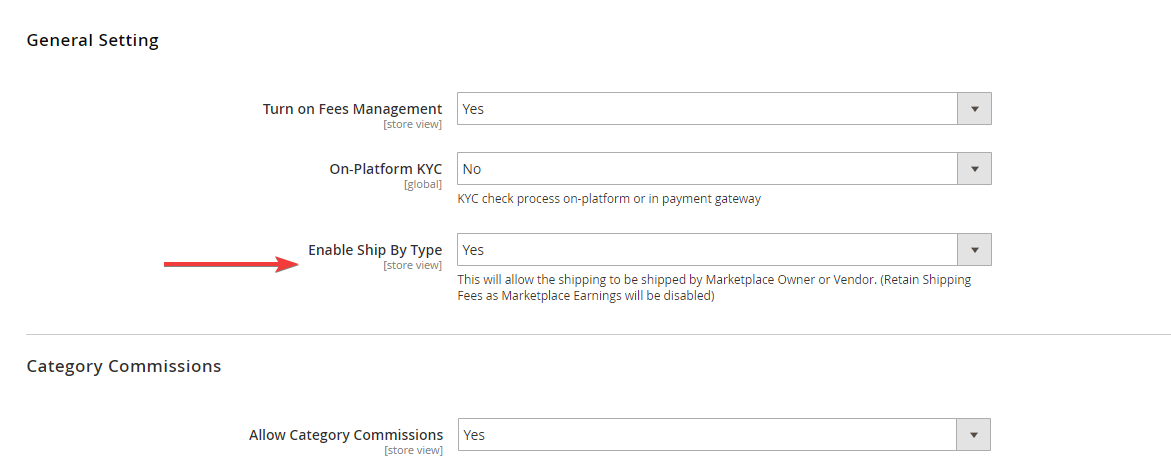
You will also need to set up your Marketplace Commercials Management (MCM) to use "Enable Ship By Type" to Yes - this is to properly calculate the shipping cost to be paid to the vendors.
Navigate to Stores > Configuration > Omnyfy > Marketplace Commercial Management > Enable Ship By Type > Yes
NOTE: You must do this before an order is placed to prevent any incorrect calculations on the MCM Dashboard.
Module Configuration
Login to the Marketplace Admin Portal, and on the left menu, navigate to Stores > Configuration > Sales > Shipping Methods > Easyship.
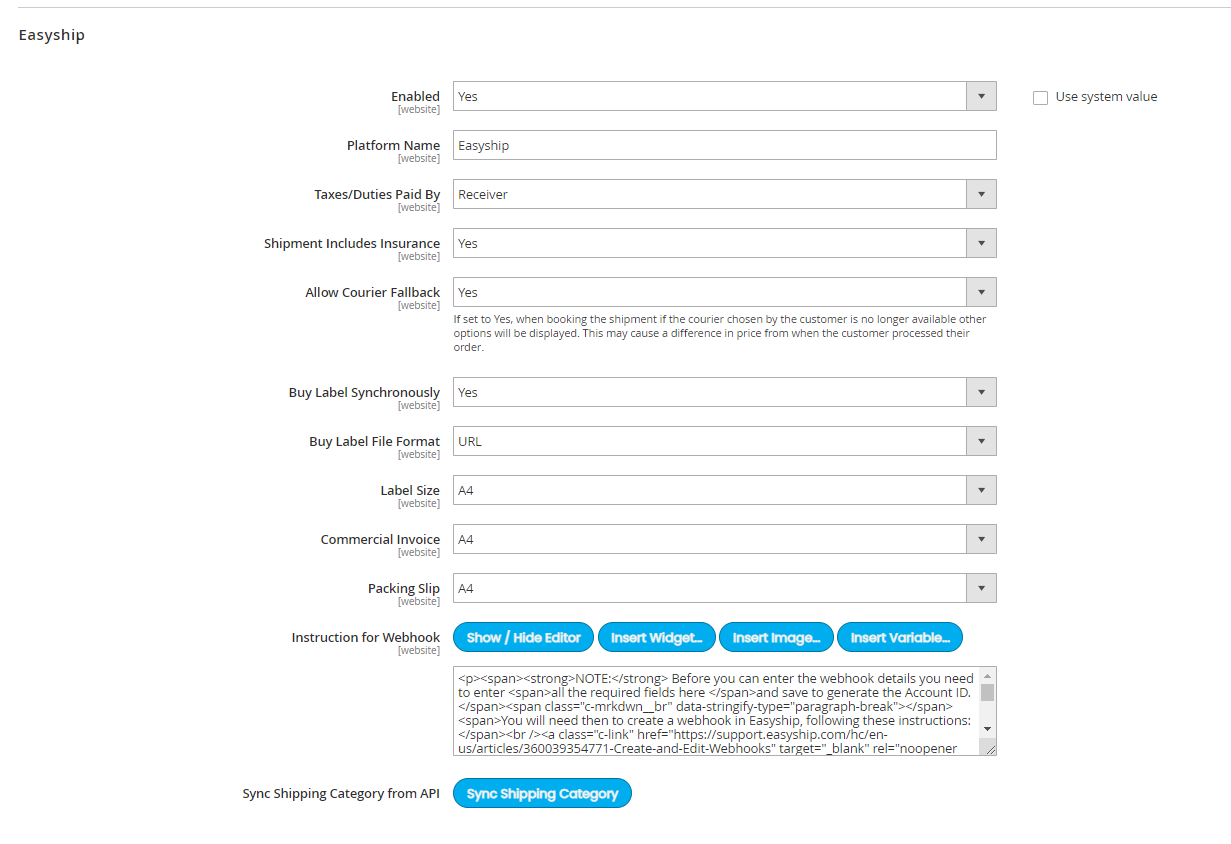
Here you will find the overall module configuration:
-
Enabled: This controls whether the module is enabled or disabled, set to Yes to enable it
-
Platform Name: The Sales Platform name sent to Easyship, and also the default name of the shipping method when Flat Rate is set.
-
Taxes/Duties Paid By: Determines who will be paying the taxes/duties on the Shipment cost. If not sent the Easyship default is Sender.
-
Shipment Includes Insurance: Determines whether Shipments will include and insurance fee
-
Allow Courier Fallback: This determines whether another courier can be chosen from the one chosen by the Customer when the Vendor or Marketplace Owner actually books the shipment if the courier chosen by the Customer is no longer available. If this is set to Yes then the shipping cost may change between the Customer ordering and the Vendor or Marketplace Owner booking the shipment.
-
Buy Label Synchronously: Allows you to buy the label at the same time as booking the shipment. Always set this to Yes.
-
Buy Label File Format (only available if "Buy Label Synchronously" is set to Yes): The file format of the Label returned from Easyship.
-
Label Size (only available if "Buy Label Synchronously" is set to Yes): Dimensions of the Label returned from Easyship (each courier might have their own integration specific size, which may override your selection).
-
Commercial Invoice (only available if "Buy Label Synchronously" is set to Yes): Dimensions of the Commercial Invoice returned from Easyship
-
Packing Slip (only available if "Buy Label Synchronously" is set to Yes): Dimensions of the Commercial Invoice returned from Easyship
-
Instructions for Webhook: These are configuration instructions that appear under the "Webhook Secret Key". Since it requires a little explanation for what to do with this field, we've made a configuration to allow Marketplace Owners to edit the language of the instructions, tailored to the site.
You can copy the content from here:
<p><span><strong>NOTE:</strong> Before you can enter the webhook details you need to enter <span>all the required fields here </span>and save to generate the Account ID.</span><span class="c-mrkdwn__br" data-stringify-type="paragraph-break"></span><span>You will need then to create a webhook in Easyship, following these instructions:</span><br /><a class="c-link" href="https://support.easyship.com/hc/en-us/articles/360039354771-Create-and-Edit-Webhooks" target="_blank" rel="noopener noreferrer" data-stringify-link="https://support.easyship.com/hc/en-us/articles/360039354771-Create-and-Edit-Webhooks" data-sk="tooltip_parent">https://support.easyship.com/hc/en-us/articles/360039354771-Create-and-Edit-Webhooks</a></p>
<p>The<span> endpoint you save in your Easyship account will be </span><strong>https://demo.omnyfy.com/easyship/webhook/shipment/account/{account_id},</strong><span> replacing {account_id} with the number generated in the Account ID field</span>.</p>
<p>EG: <strong>https://demo.omnyfy.com/easyship/webhook/shipment/account/1</strong></p>
<p><span class="c-mrkdwn__br" data-stringify-type="paragraph-break"></span>When creating your webhook, please also ensure you have checked the following boxes:</p>
<ul>
<li>shipment.canceled</li>
<li>shipment.label.created</li>
<li>shipment.label.failed</li>
<li>shipment.tracking.status.changed</li>
</ul>
Replace the 2 references of https://demo.omnyfy.com in this text with your own domain.
-
Sync Shipping Category from API (Must have a valid Easyship account set up first before you can action this - see next step): This will automatically pull in all of the shipping categories that Easyship requires for products to be shipped.
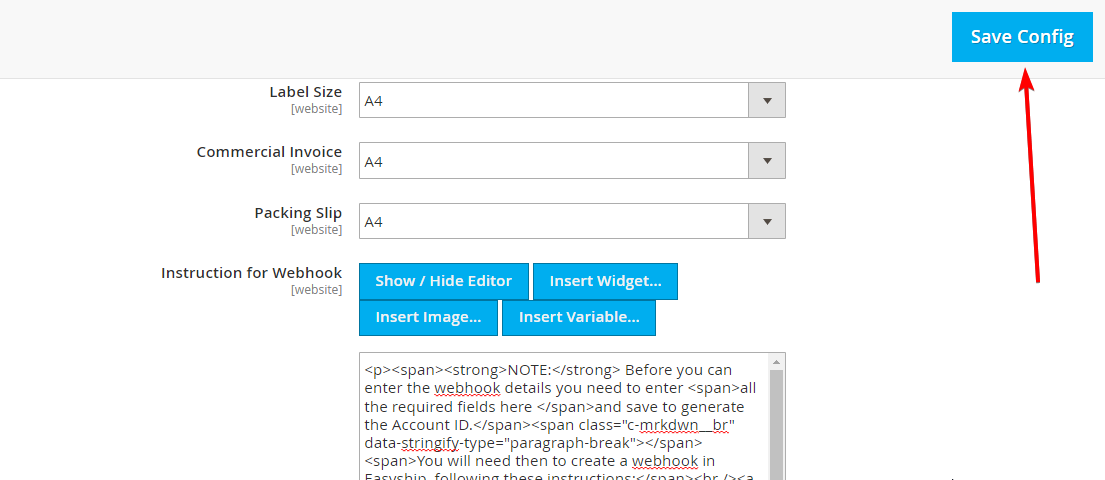
Generally, you would set up an account for the Marketplace Owner so that you can import the Shipping Categories, so for now save it. Once saved, ensure you clear your cache and reindex, in order to see Easyship Accounts and Easyship Booking Management in the Sales Menu.
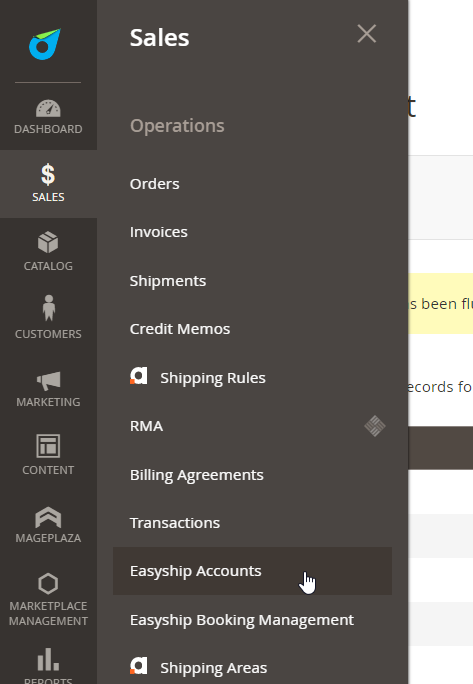
Next, you can set up an Easyship Account in Admin Portal, and link it to your Easyship Dashboard.
Updated 6 months ago