
Configuring Default Flat Rate Shipping
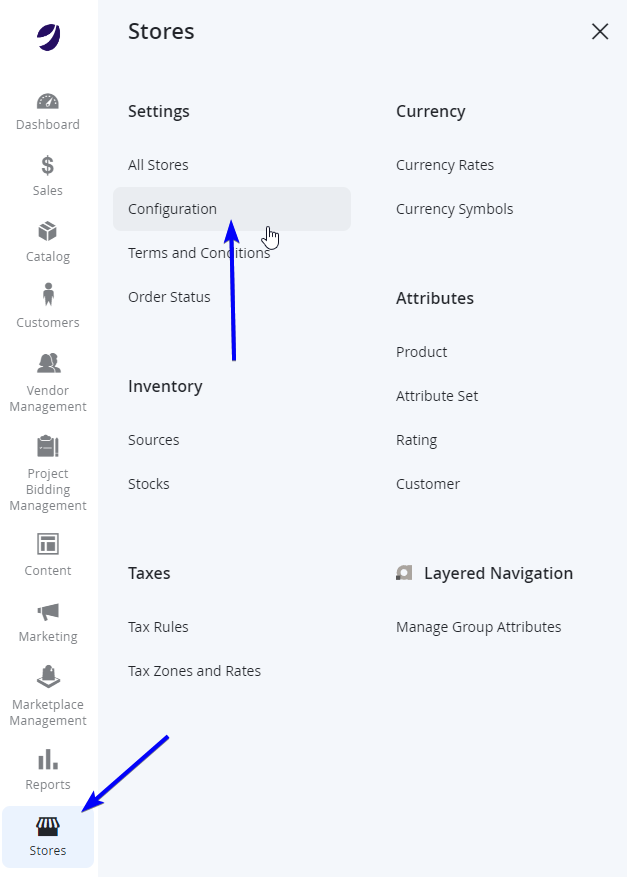
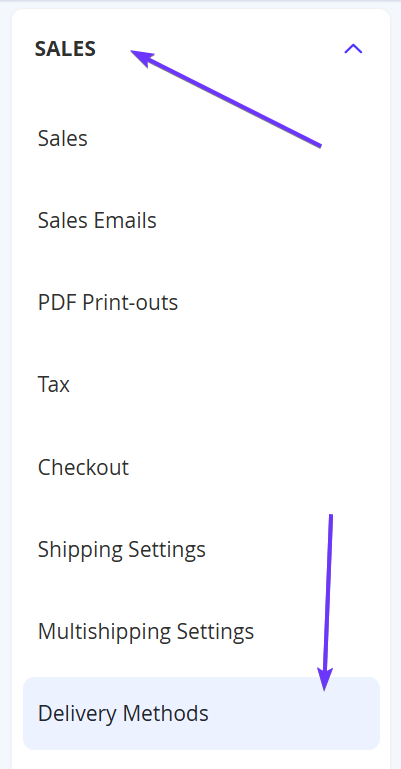
The Marketplace can have a single default flat rate shipping per Website scope. This can be found configured with the other Shipping methods in the Stores > Settings > Configuration > Sales > Delivery Methods section.
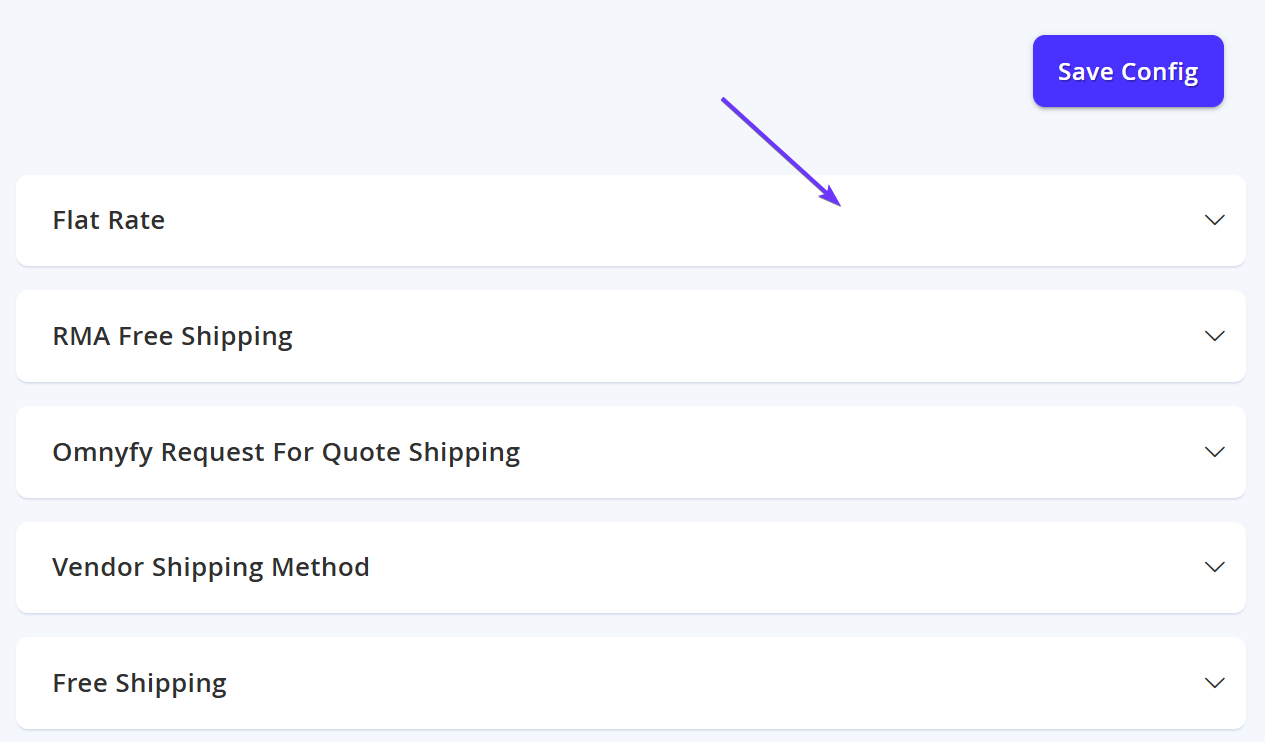
From here, you can select the Flat Rate tab on the main section to open the settings.
| Field Name | Notes | Scope |
|---|---|---|
| Enabled | Set this to Yes to use Flat Rate Shipping on the Marketplace. | Website |
| Title | Sets the title of the Shipping Method - Displayed for customer selection at checkout. | Store View |
| Method Name | Sets the name of the Shipping Method - Displayed for customer selection at checkout. | Store View |
| Type | Allows you to select if the Shipping Cost will be based on a Per Item (meaning more products in the cart will multiply the shipping cost) or Per Order basis. | Website |
| Price | Sets the Flat Rate Shipping Price based on the Type selected above.
| Website |
| Calculate Handling Fee | Set how additional Handling Fees will be managed (Fixed or Percentage). You can leave this set to Fixed by default, and leave the Handling Fee value empty to not charge the customer additional costs. | Website |
| Handling Fee | You may set a price on this if required. The value will be based on the Fixed or Percentage selection in the field above. Leave empty if you do not wish to use this. | Website |
| Display Error Message | If the Shipping Method is not available, display the text in this field. | Store View |
| Ship to Applicable Countries | Set whether you would like to allow All Allowed Countries or just Specific Countries for this Delivery Method. | Website |
| Ship to Specific Countries | If using the Specific Countries setting from the above field, you can select the relevant countries that will be able to use Default Flat Rate Shipping. | Website |
| Show Method if Not Applicable | Set to Yes if you would like to still show this Delivery Method (with the Error message from above). Set this to No to hide this Delivery Method if not applicable. | Website |
| Sort Order | If using multiple Delivery Methods, you can input a number value to dictate which will appear higher or lower in the order of options that Customers can select. | Website |
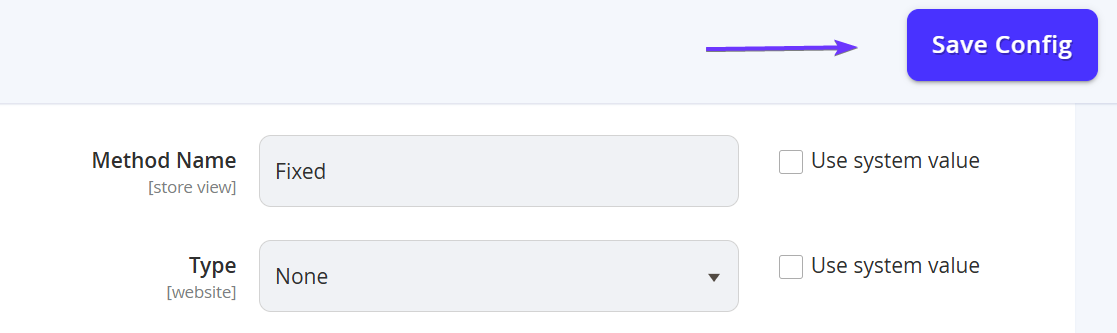
Select Save Config from the top right, if you have made any changes from the default configuration.
Updated over 1 year ago
Did this page help you?