
Adding Tax Rates for Vendor Subscription Plans
By default, Tax is not added to the Stripe Subscription Products. To add a Tax Rate, you will first need to obtain the Tax Rate ID for the subscription plan you would like to add to, then select.
NOTE
Currently, the tax rate will be applied to ALL subscriptions, regardless of origin. You will only be able to have one per Website.
Creating a Tax Rate in Stripe
-
Log in to the Stripe Dashboard with the Marketplace Account.
-
Navigate to Product Catalogue > Tax Rates.
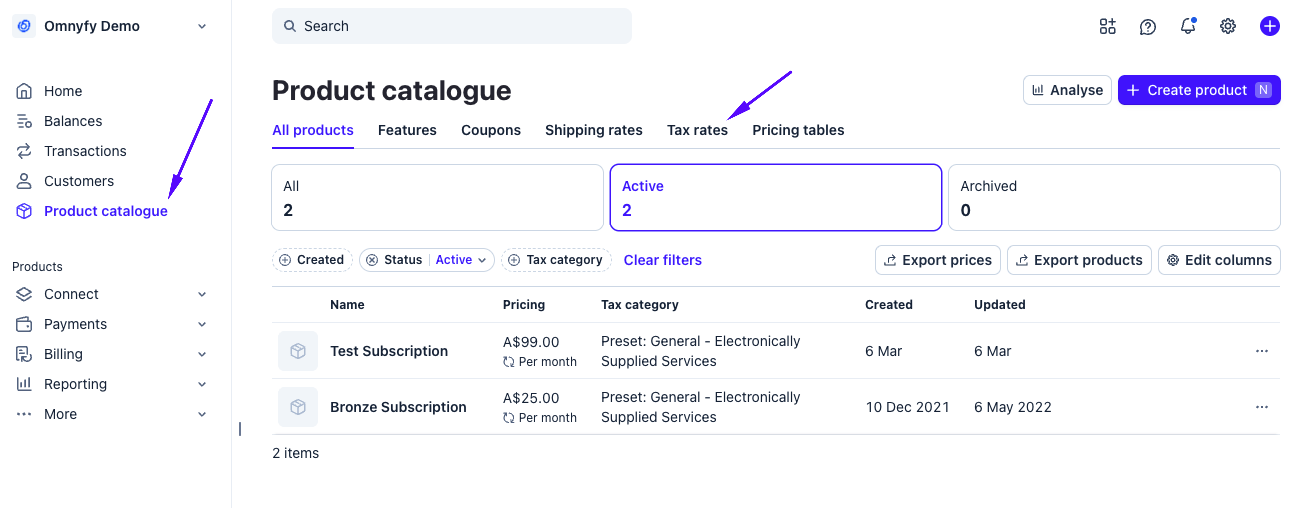
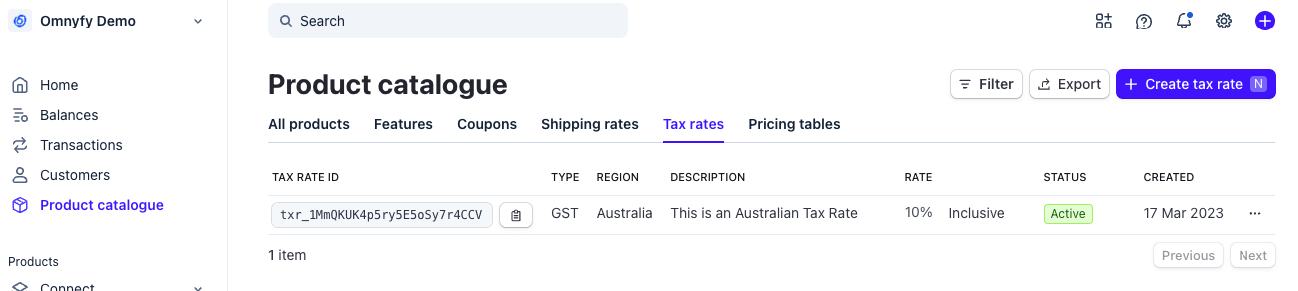
You will be taken to the Tax Rates tab.
-
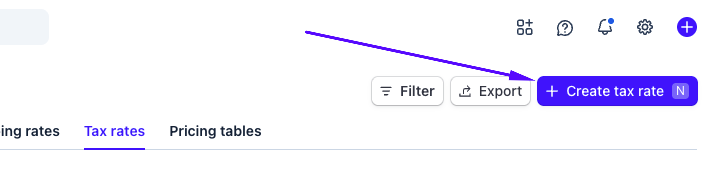
Select + Create tax rate from the top right.
-
A pop up will appear where you can populate tax details (See Australia tax rate example below).
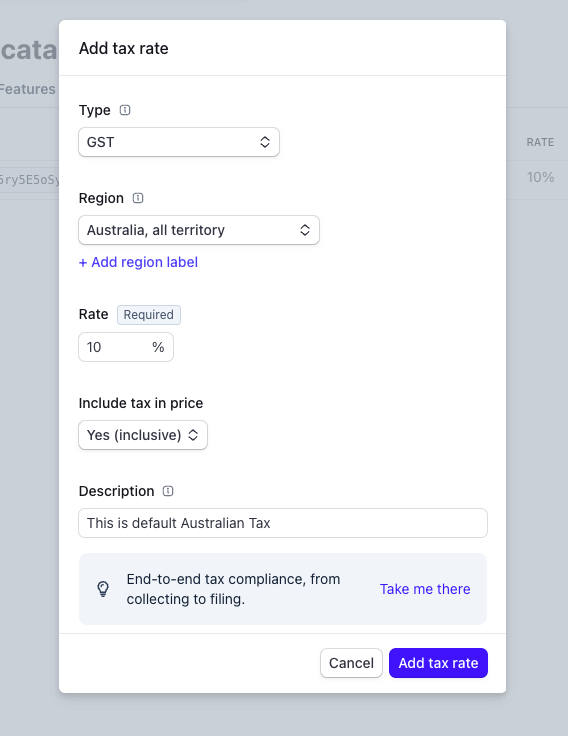
Select Add tax rate at the bottom right of the pop up to create the tax rate.
-
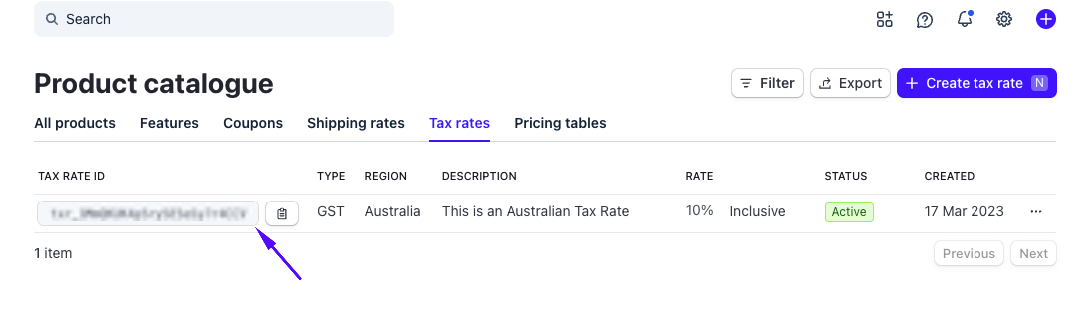
The new record will be available to see in the grid. You can then copy the Tax Rate ID to paste in the Marketplace Admin Portal.
-
Once copied, log in to the Marketplace Admin Portal with a Marketplace Owner/Admin user role.
-
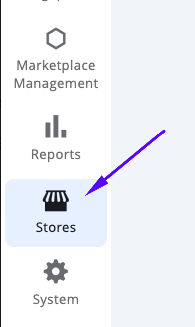
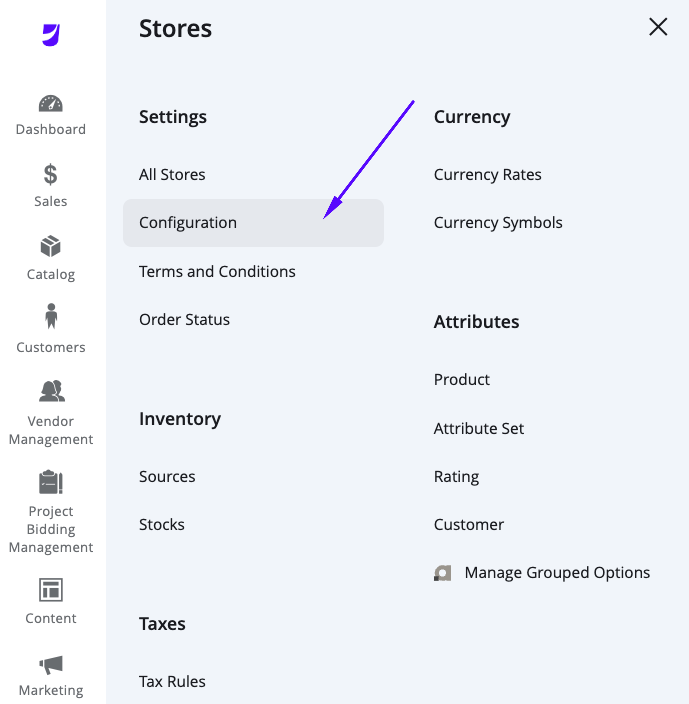
Navigate to Stores > Settings > Configuration.
-
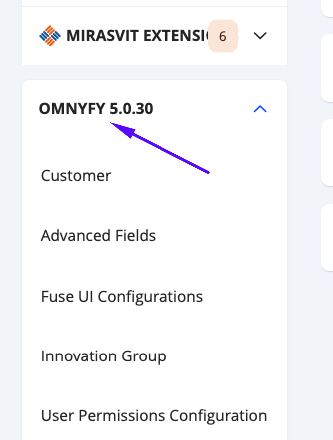
Once the Configuration page has loaded, navigate to Omnyfy > Stripe API (for Subscription).
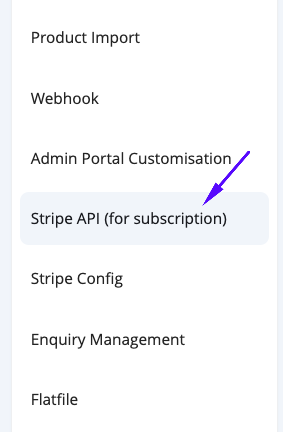
-
Open the Tax Configuration tab, and paste the Tax Rate ID in the field below.
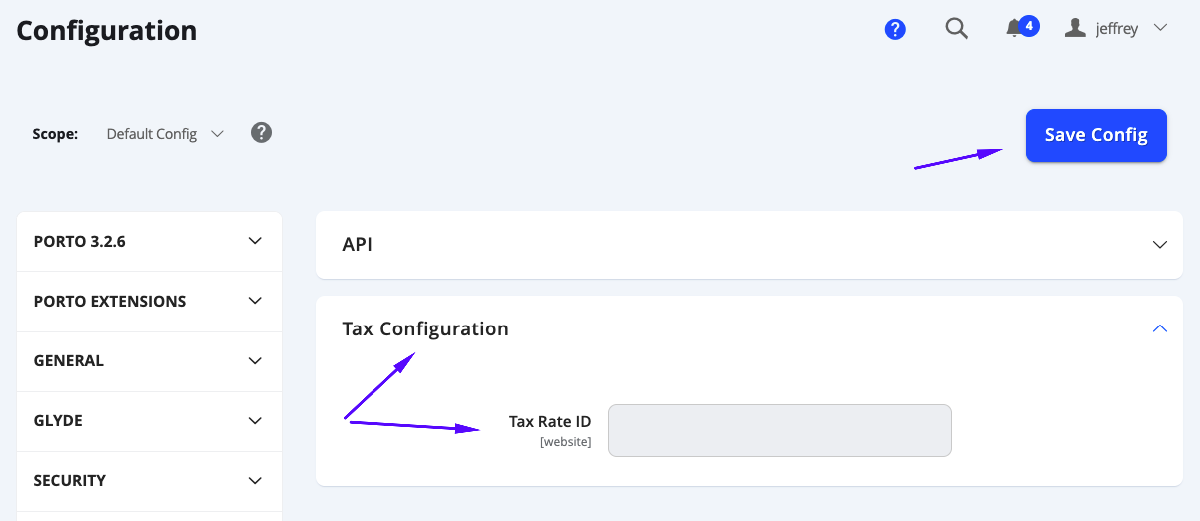
Select Save Config when completed.
Updated 7 months ago