
Configuring Tax Zones and Rates
First you will need to create a new Tax Rate before you can create a Tax Rule, as this is a parameter to be selected in the rules. These can only be managed by Marketplace Owners.
-
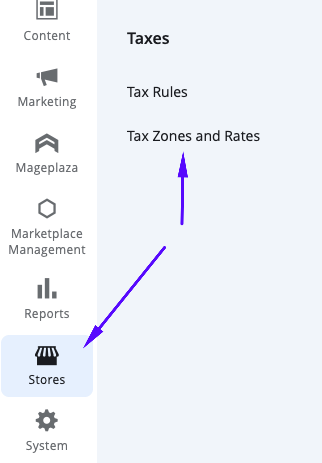
In the Admin Portal, navigate to the left menu and select Stores > Taxes > Tax Zones and Rates.
-
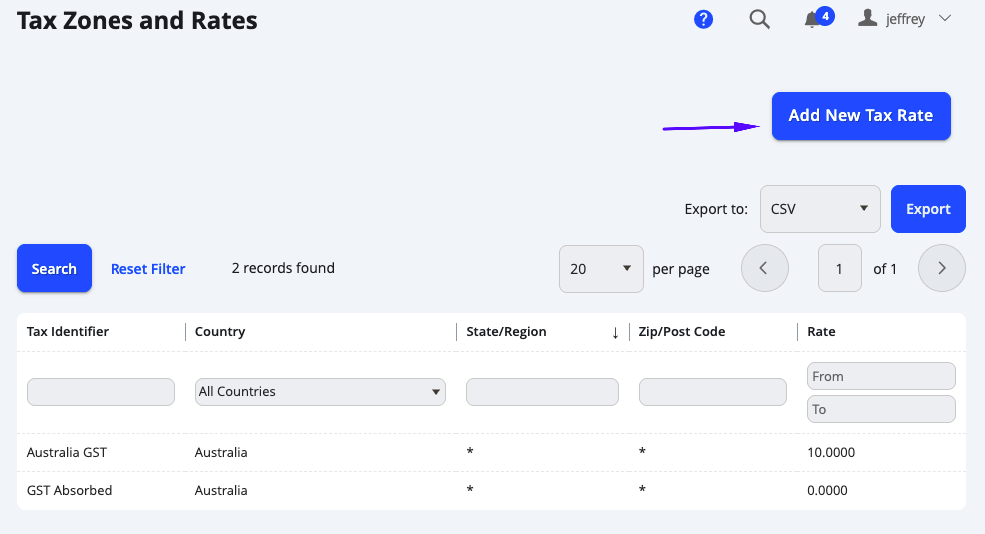
Here you will see a table of existing rates. From the top right, you can select Add New Tax Rate.
-
Enter the details for the new tax rate.
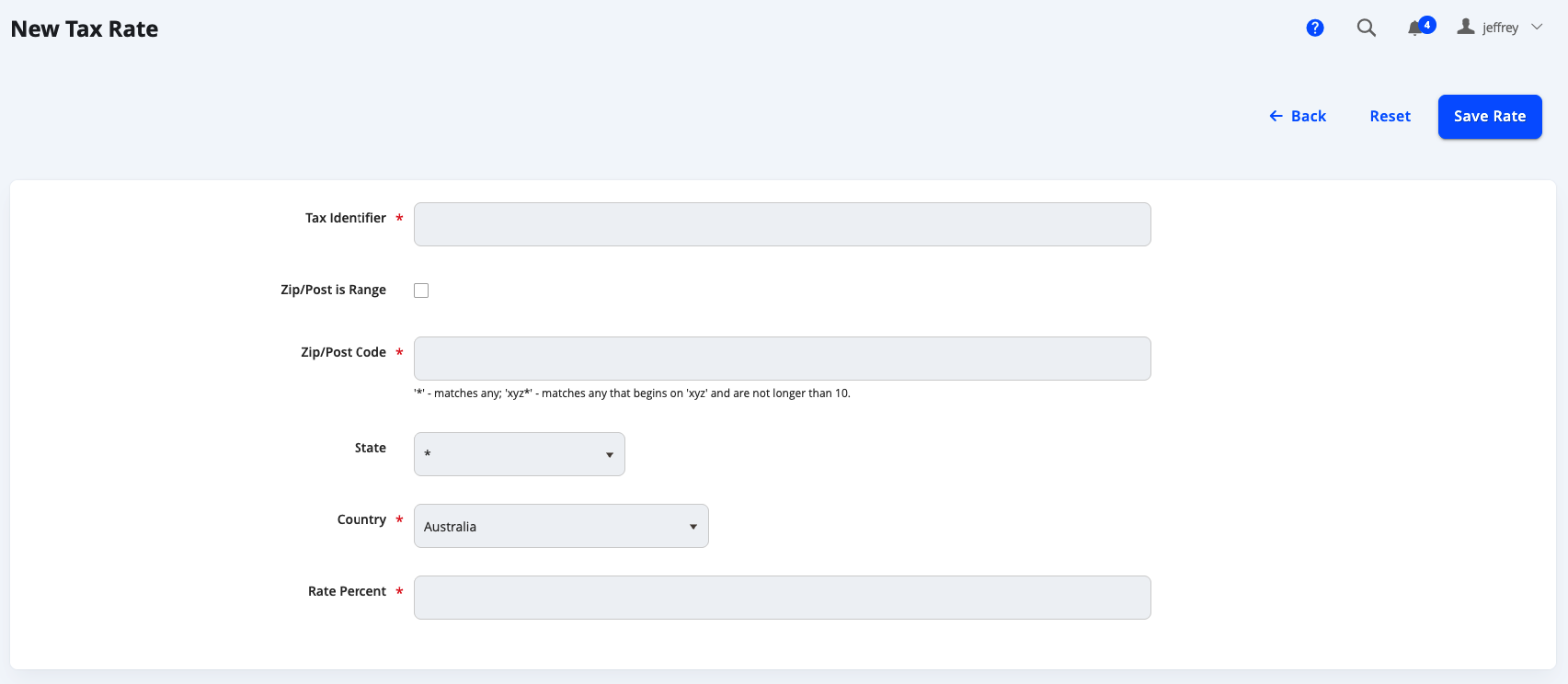
Field Name Notes GENERAL Tax Identifier This is a unique ID for the tax rate Zip/Post is Range Select this if you would like to apply the tax on a zip/post code. *Range From and Range To These 2 fields will only apply if the Zip/Post is Range field is ticked. This will allow you to input the From and To for the zip/post code. Zip/Post Code Enter the Post Codes for this Tax. The wildcard (_) can be used to match up to ten characters in the code.
For example, "90_" represents all ZIP codes from 90000 through 90999.
State Choose the State where the tax rate applies (if applicable).
The asterisk wildcard (*) can be used to (if available for the Country) to apply for the entire Country rather than individual states.
Country Choose the Country where the tax rate applies. Rate Percent Enter the Rate Percent that is used for the tax rate calculation. TAX TITLES *Store Views Here you can add custom tax titles based on the different store views if applicable. Otherwise you can leave it blank
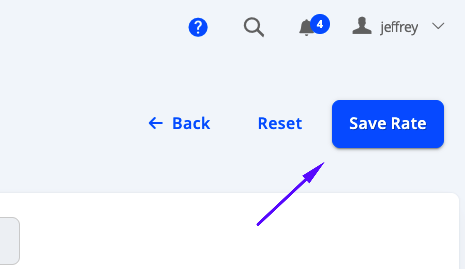
- Select Save Rate when complete.
You can now use these Tax Zones and Rates for the Tax Rules.
Updated 5 months ago