
Accessing Products from the Admin Portal
Accessing the Product Grid
As a Marketplace Owner and typically most Vendor Roles, you can access the products in the Admin Portal from Catalog > Inventory > Products from the left menu.
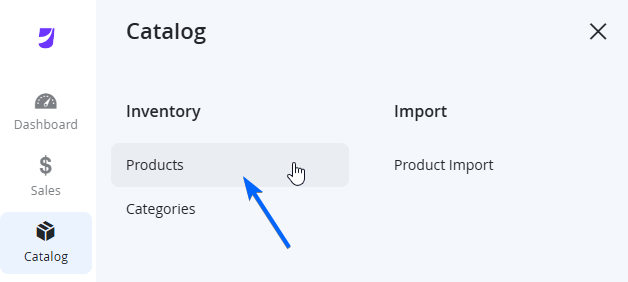
You will be taken to the Product Grid, which will contain a list of all products on the Marketplace (paginated). As a Vendor, you will only be able to view products that belong to you, not from other Vendors, and other Vendors cannot see yours.
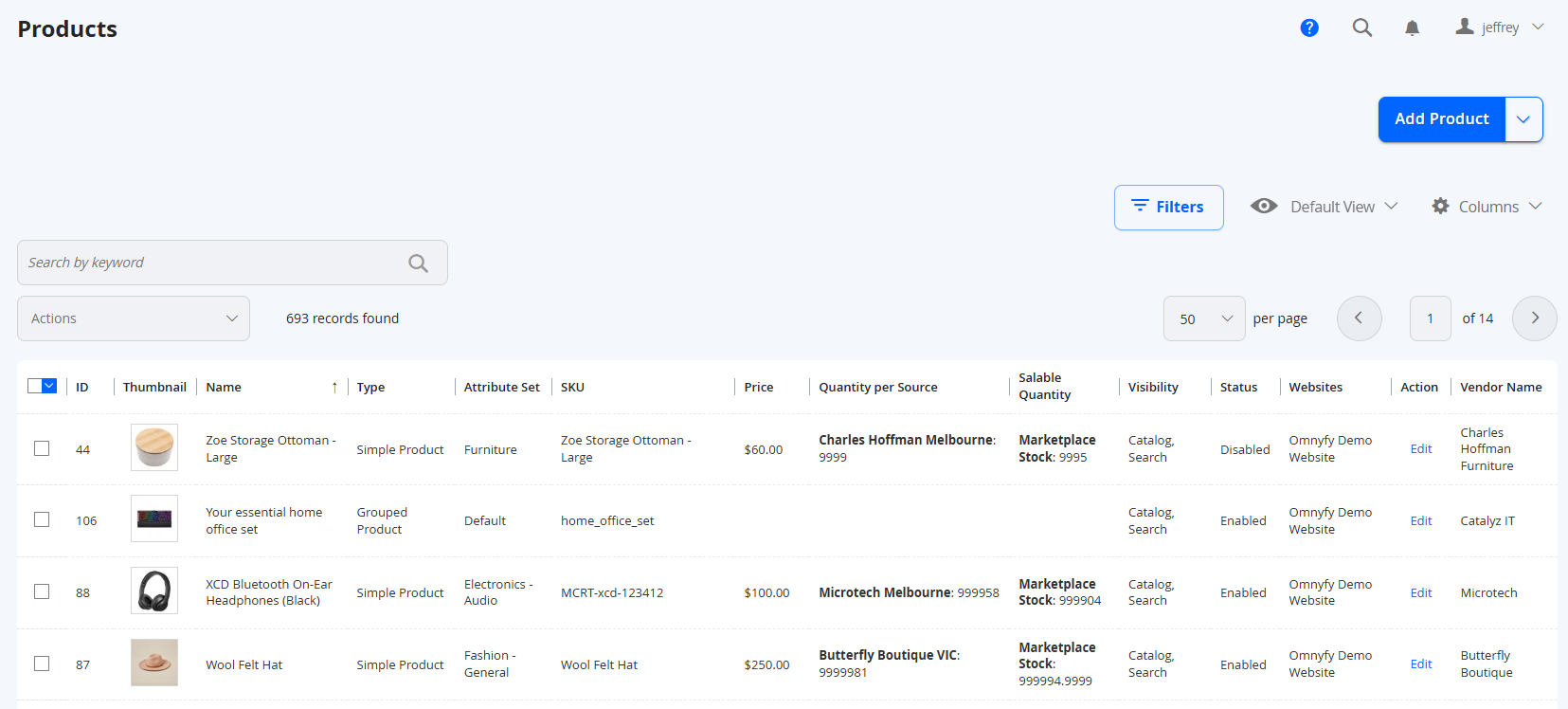
You will be able to see the standard grid, with some of the basic attributes and items available by default.
| Column Name | Notes |
|---|---|
| ID | The unique identifier for the product in the Platform (separate from SKU). |
| Thumbnail | A preview of the product if a thumbnail is available. |
| Name | The name of the product |
| Type | The Product Type used in its creation. |
| Attribute Set | The Attribute Set associated with this Product |
| SKU | The SKU of the product |
| Price | The Base Price of the Product. |
| Quantity Per Source | The amount of stock available in the source (includes unshipped products) |
| Salable Quantity | The amount of stock available to sell online on the Marketplace. |
| Visibility | Dictates where the product is visible in Front End of the Marketplace
|
| Status | Dictates if the product is Enabled or Disabled |
| Websites | Dictates which Website / Marketplace the Product is shown in (used mostly in multi-site Marketplaces) |
| Action | Select the Edit link here to edit the Product. |
| Vendor Name | Dictates which Vendor the Product is assigned to. |
Custom Product Attributes
Custom Product Attributes can be displayed on the Product Grid if required, but if it is not managed well, you may encounter a scenario where you have too many attributes displayed which may not be relevant to some vendors and they may see a really large gap of data and a really wide grid.
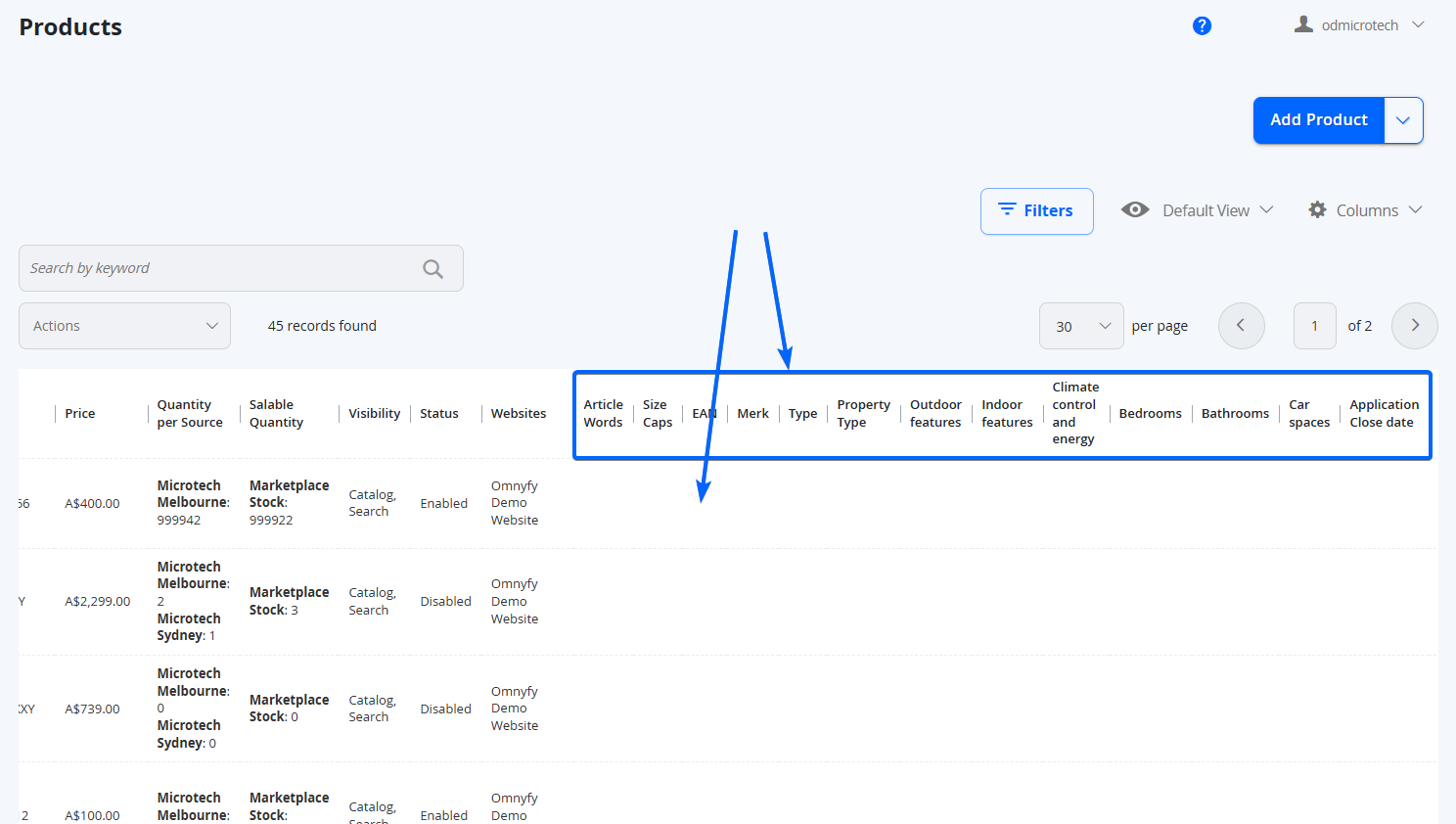
In this case, a tech store is seeing irrelevant attributes related to housing because the setting of displaying the attribute in Product Grid was enabled. See our Product Attributes guide - Add to Column Options.
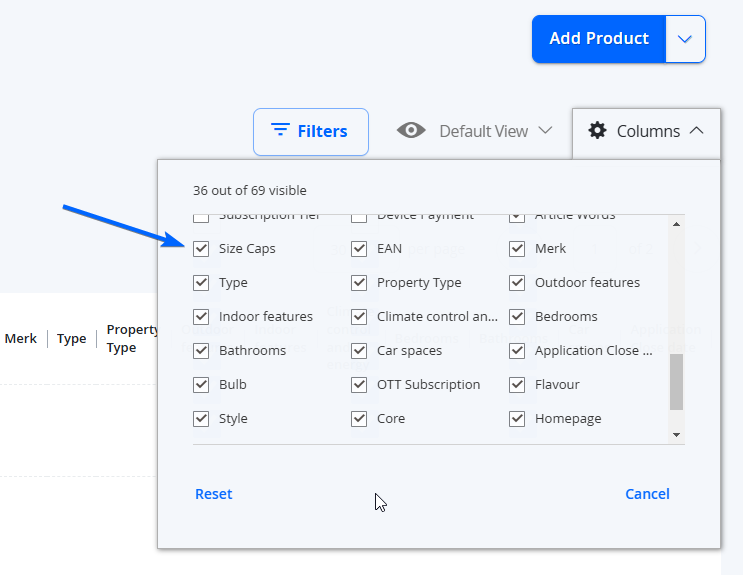
You can also choose to enable or disable these attributes on your own personal view by selecting columns on the top right, and unselecting any attribute not relevant.
Searching and Filtering Products
You can Search for products using the Keyword search available, which will scan through all searchable attributes.
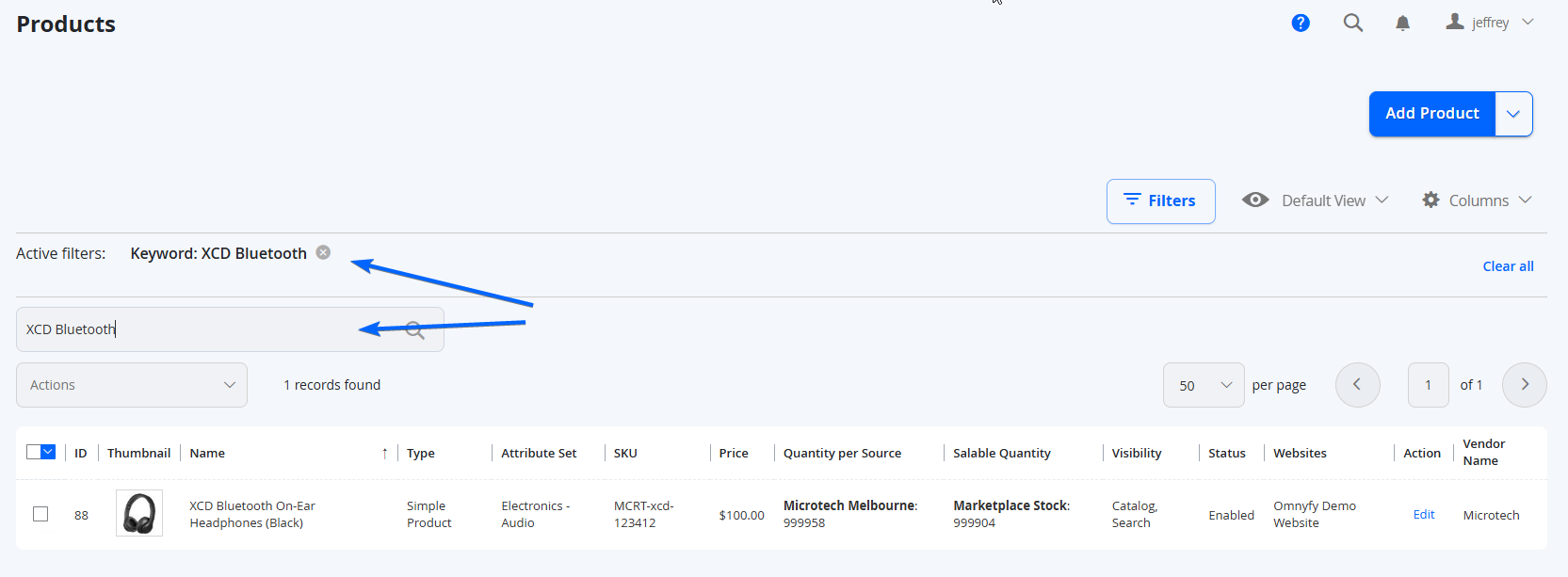
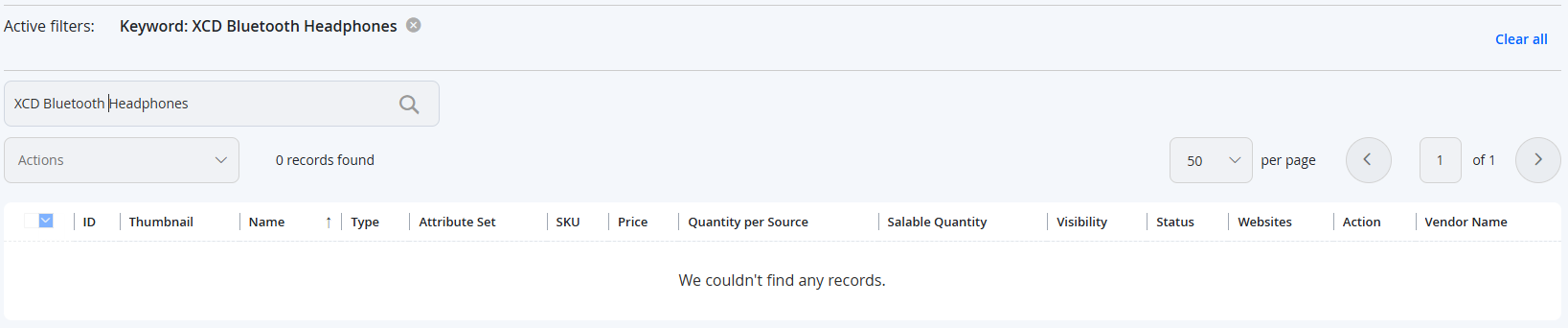
It is important to note that this is an Exact Search, where if you do not type the words in a specific order, you may get skewed results. For example, XCD Bluetooth Headphones will not display the specific product above, as the Name of the product is XCD Bluetooth On-Ear Headphones. Without the "On-Ear" part of the name, it will not be able to display this by default.
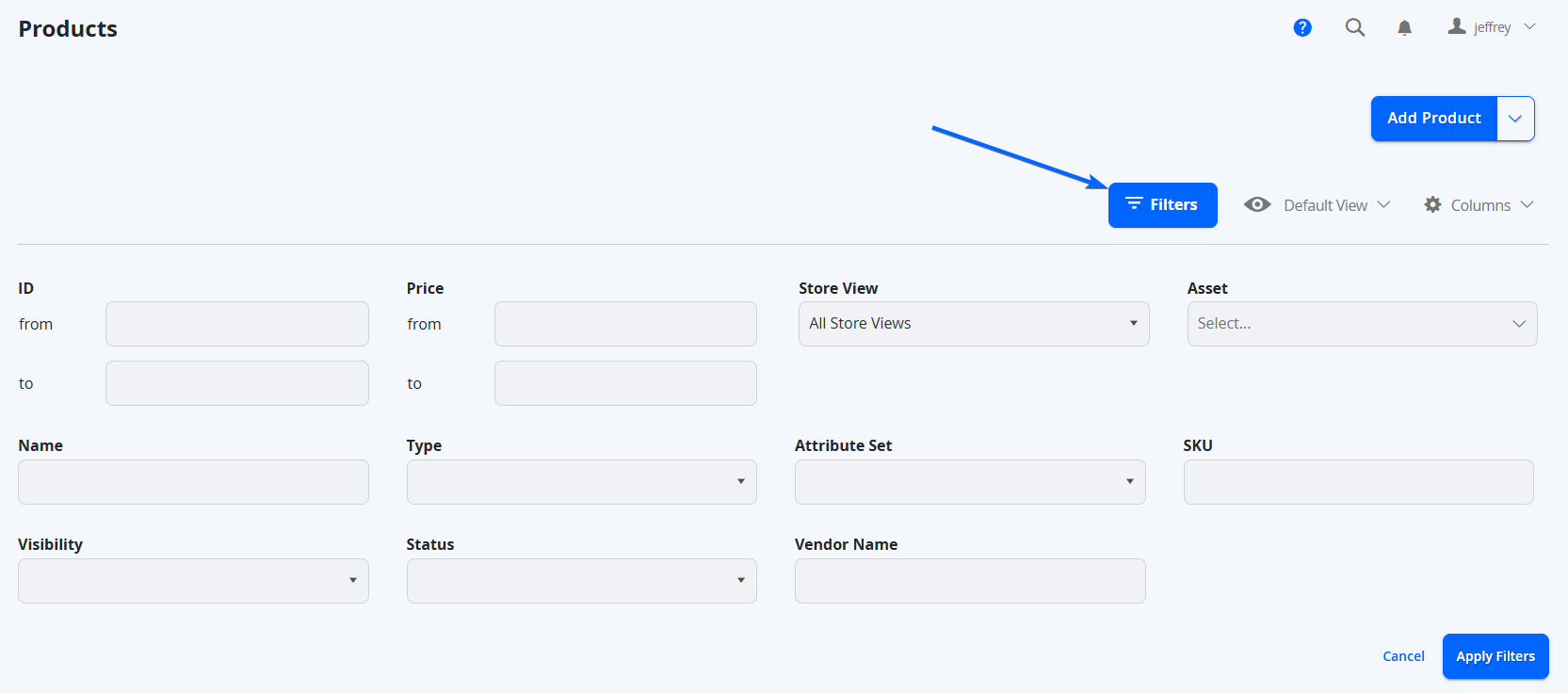
You may also filter for products specifically from an Attribute for available columns using the Filters section. Simply select the Filters button at the top right of the grid, input the data on the specific attribute you are searching for, and select Apply Filters at the bottom right of the filter section.
Updated over 1 year ago