
Creating a Vendor Shipping Option (as a Vendor)
Accessing Vendor Shipping Options from the Admin Portal
After each vendor is approved in the Marketplace and they configured their Store Front and Sources, their Shipping Options can be set up. Vendor Shipping Options can be found in Sales > Vendor Shipping > Vendor Shipping Options.
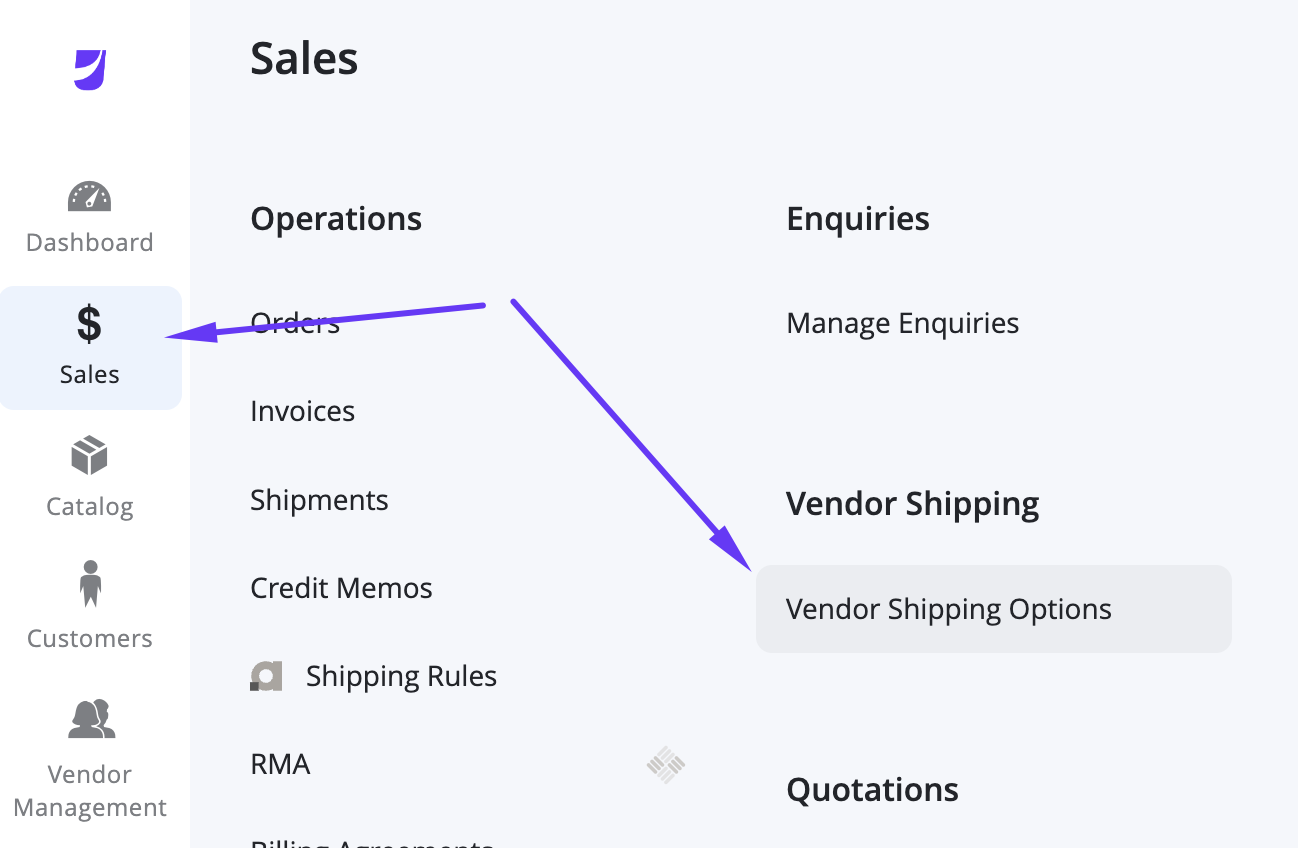
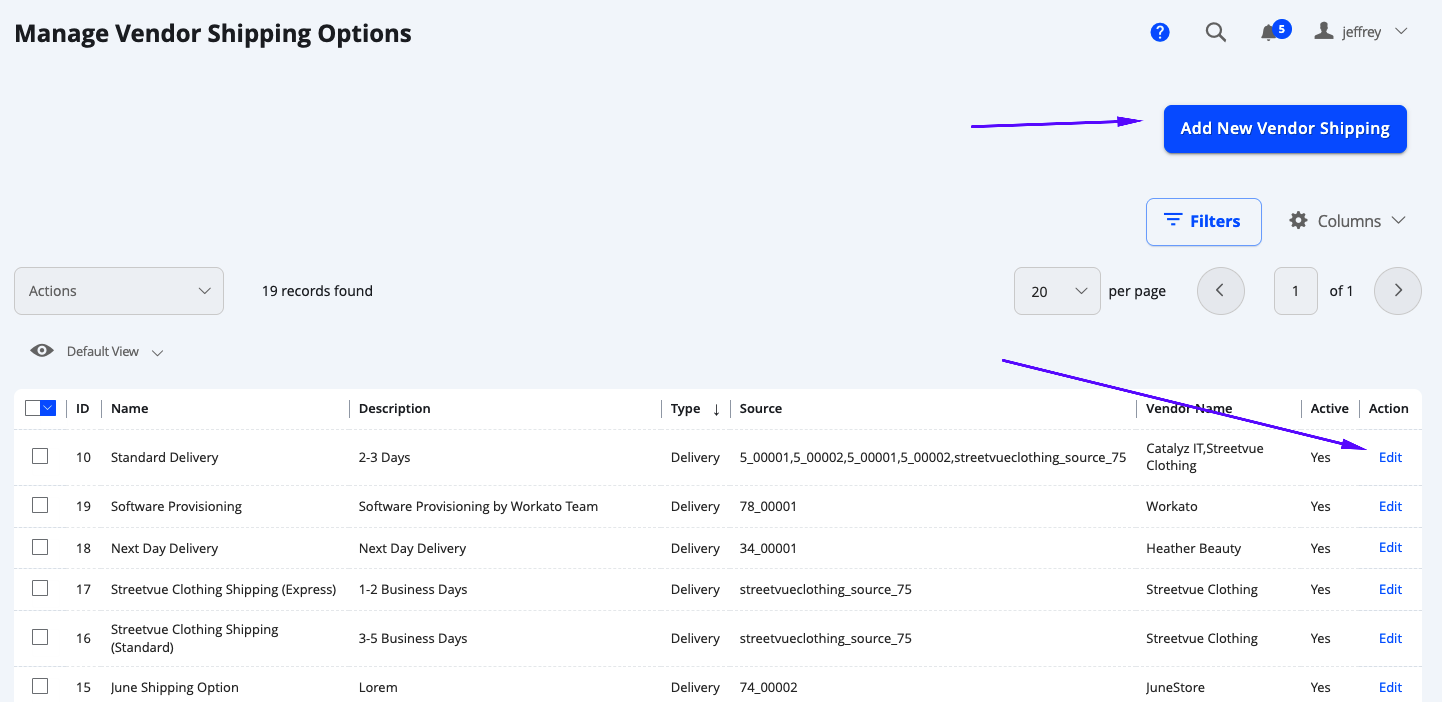
Each vendor will only have access to their own Vendor Shipping Options from this grid, however the Marketplace Owner is able to see all options from all vendors. In this grid, you will see: Name, Description, Type, Source, Vendor Name, Active and the Action button. A filter can also be used to find a specific Vendor Shipping.
To create a new Shipping option, click the Add New Vendor Shipping button. You can also select Actions > Edit on a row item to edit that specific Vendor Shipping Option.
Creating a new Vendor Shipping Option (Delivery)
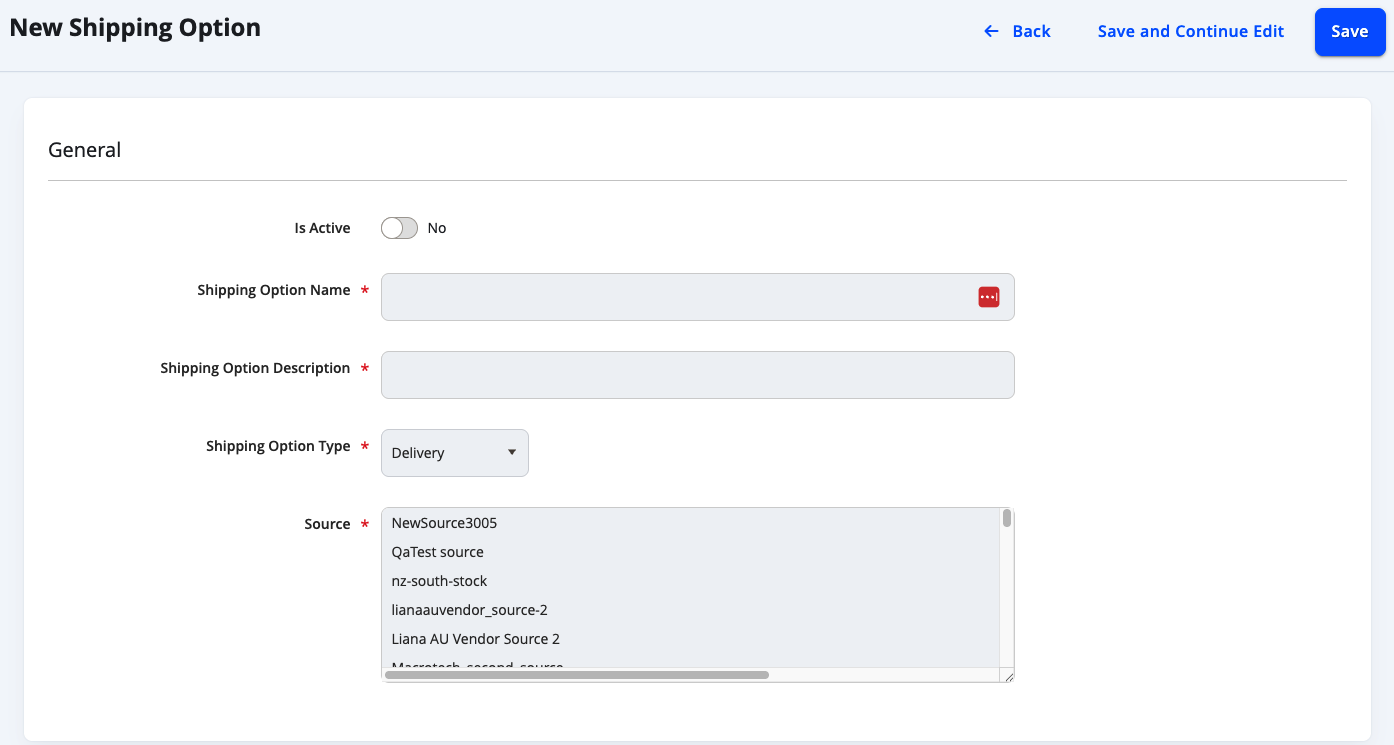
When adding a new / editing a Vendor Shipping Option, you will see groups of attributes that can be finely tuned for specific conditions.
General
| Field | Notes |
|---|---|
| Is Active | Toggle Yes / No if the Shipping Rule should be enabled. |
| Shipping Option Name | Specify the title of the shipping option. It will be displayed on the admin grid and cart/checkout for customers. |
| Shipping Option Description | Specify a description for the shipping option. It will be displayed on the grid and cart/checkout for customers. |
| Shipping Option Type | Currently only Delivery is applicable. |
| Source | Determines which source/s this Vendor Shipping rule should be assigned to. Vendors can only see their own Sources, however Marketplace Owner can see all the Sources from all vendors. |
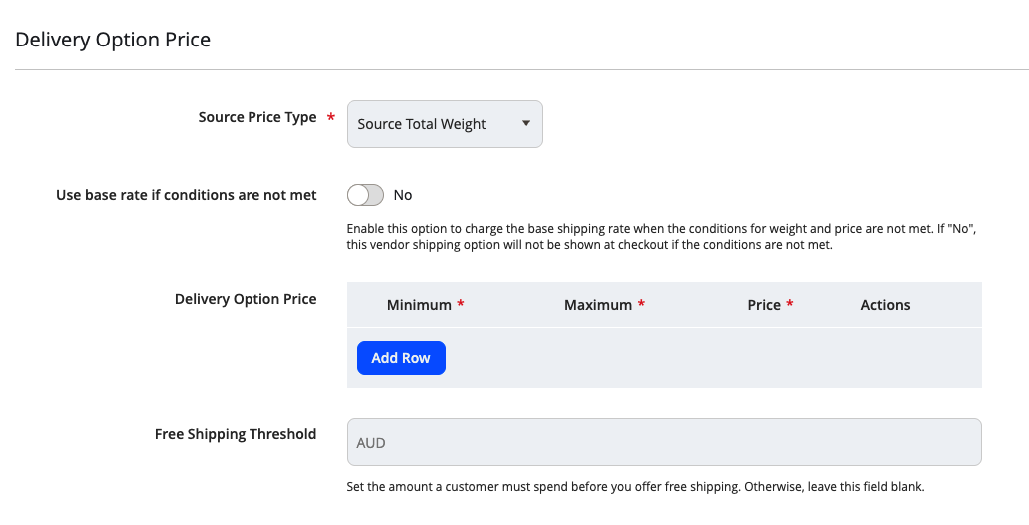
Delivery Option Price
| Field | Notes |
|---|---|
| Source Price Type | Determines the basis which the price will be calculated. Options: Source Total Weight / Source Total Price
|
| Use base rate if conditions are not met | Enable this option to charge the base shipping rate when the conditions for weight and price are not met. If No, this vendor shipping option will not be shown at checkout if the conditions are not met. |
| *Base rate | Set the amount the customer will pay if the conditions for weight and price below are not met. Only available if the above is toggled to Yes. |
| Delivery Option Price | Enable the creation of tier price for shipping based on the Source Price Type.
|
| Free Shipping Threshold | Sets the amount a customer must spend before you offer free shipping. Otherwise, leave this field blank. |
Source Price Type: By Weight
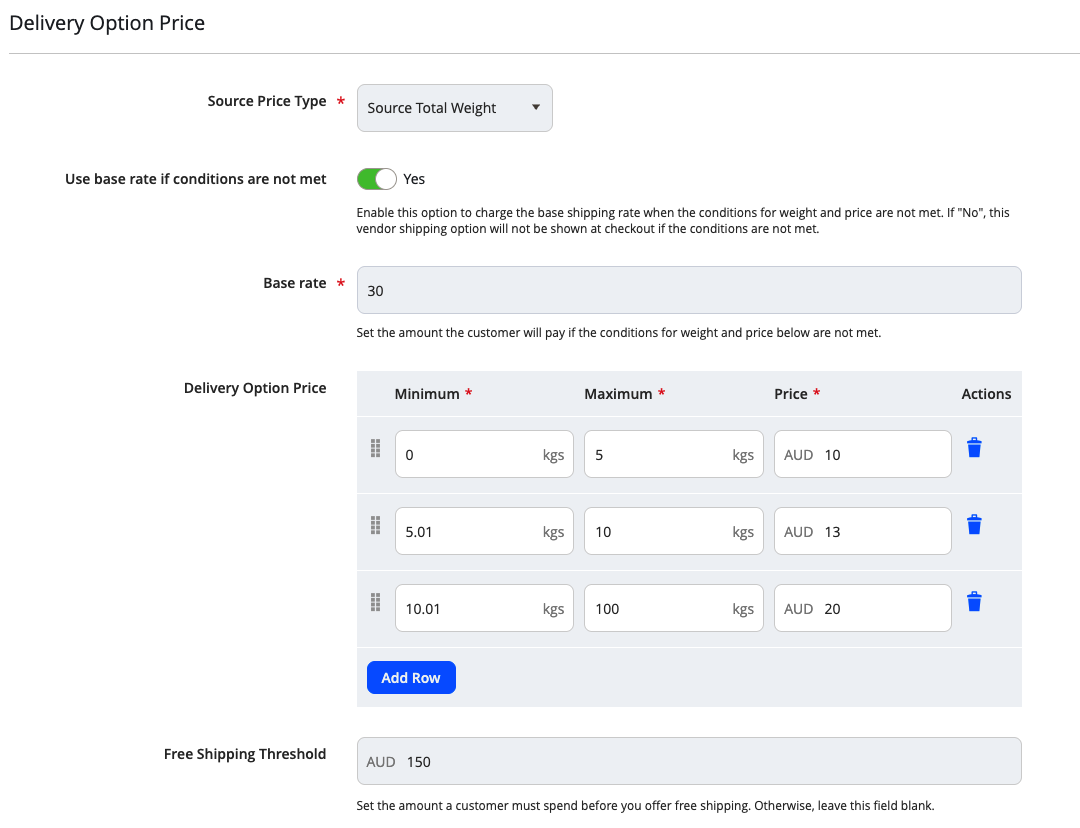
When selecting the Source Price Type: Source Total Weight, the minimum and maximum amounts on the tier rows will follow the marketplace configuration for weight unit. In the example below:
- Shipping price will be calculated based on products weight
- When a customer adds products to the cart from the sources selected for this Vendor Shipping Options (This will only work accurately if the products contain the correct weight in the product data).
- If the combination of all products weight is between 0 kg and 5 kg, the customer will pay A$10 for shipping
- If the combination of all products weight is between 5.01 kg and 10 kg, the customer will pay A$13 for shipping
- If the combination of all products weight is between 10.01 kg and 20 kg, the customer will pay A$20 for shipping
- If the combination of all products weight is higher than 20 kg, and lower than $150 in total cost, the customer will pay a flat rate of $30 for shipping (set with Base rate).
- If the total products prices are above A$150, the customer qualifies for free shipping.
Source Price Type: By Price
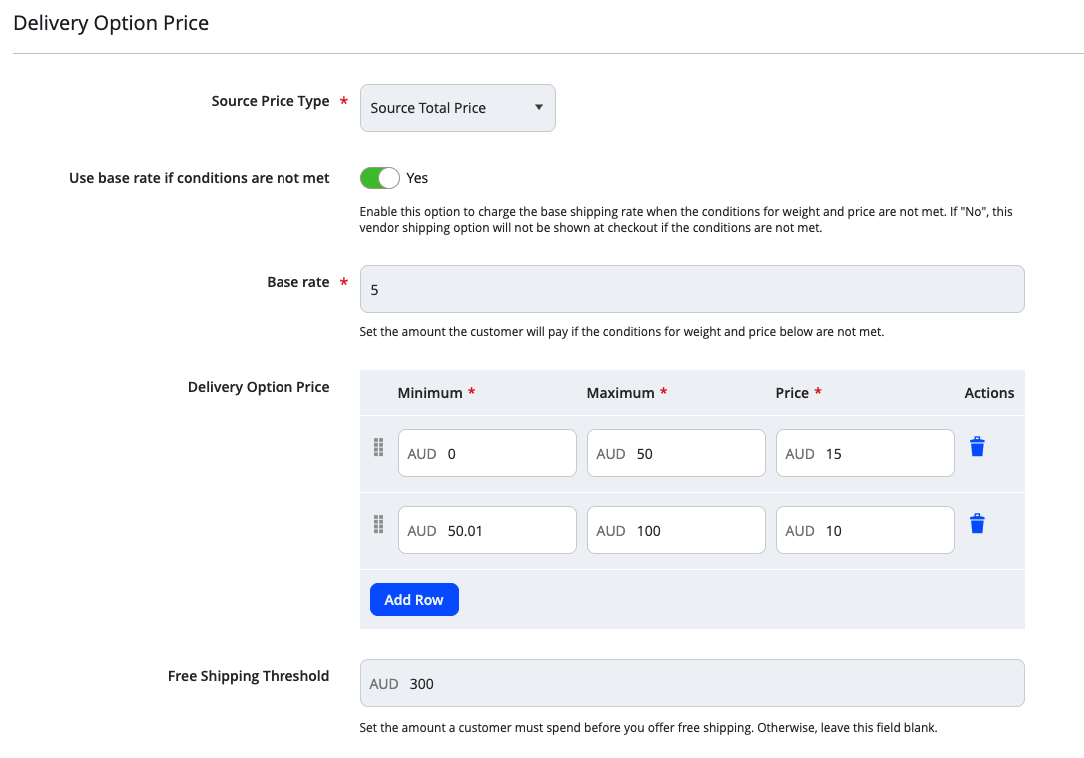
When selecting the Source Price Type: Source Total Price, the minimum and maximum amounts on the tier rows will follow the marketplace configuration for currency unit. In the example below:
- Shipping price will be calculated based on products price
- When a customer adds products to the cart from the sources selected for this Vendor Shipping Options
- If the combination of all products price is between A$0 and A$50, the customer will pay A$15 for shipping.
- If the combination of all products price is between A$50.01 and A$100, the customer will pay A$10 for shipping.
- If the combination of all products price is between A$100.01 and A$300, the customer will pay A$5 for shipping.
- If the combination of all products price is above A$300, the customer qualifies for free shipping.
Source Price Type: By Quantity
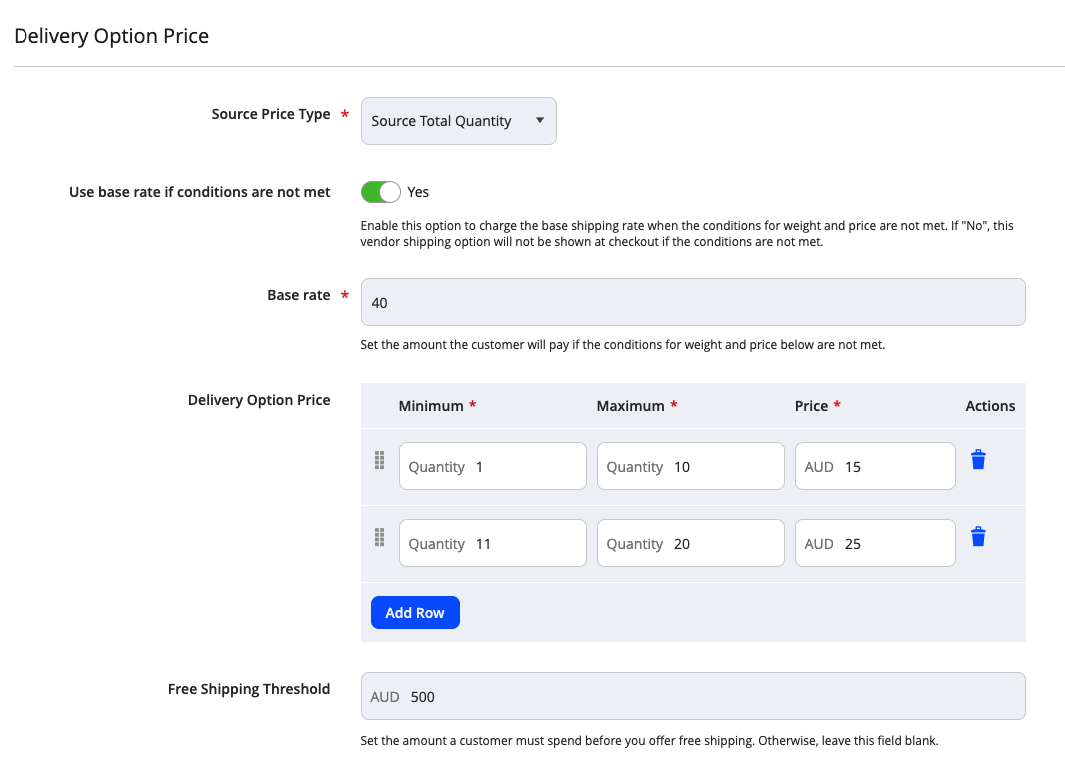
When selecting the Source Price Type: Source Total Quantity, the minimum and maximum amounts on the tier rows will follow the marketplace configuration for quantity. In the example below:
- Shipping price will be calculated based on the quantity of products in the cart.
- When a customer adds products to the cart from the sources selected for this Vendor Shipping Options
- If the combination of all products quantity is between 1 and 10, the customer will pay A$15 for shipping.
- If the combination of all products quantity is between 11 and 20, the customer will pay A$25 for shipping.
- If the combination of all products quantity is higher than 20 and lower than $500 in total cost, the customer will pay A$40 for shipping.
- If the combination of all products price is above A$500, the customer qualifies for free shipping.
Delivery Shipping Area
| Field | Notes |
|---|---|
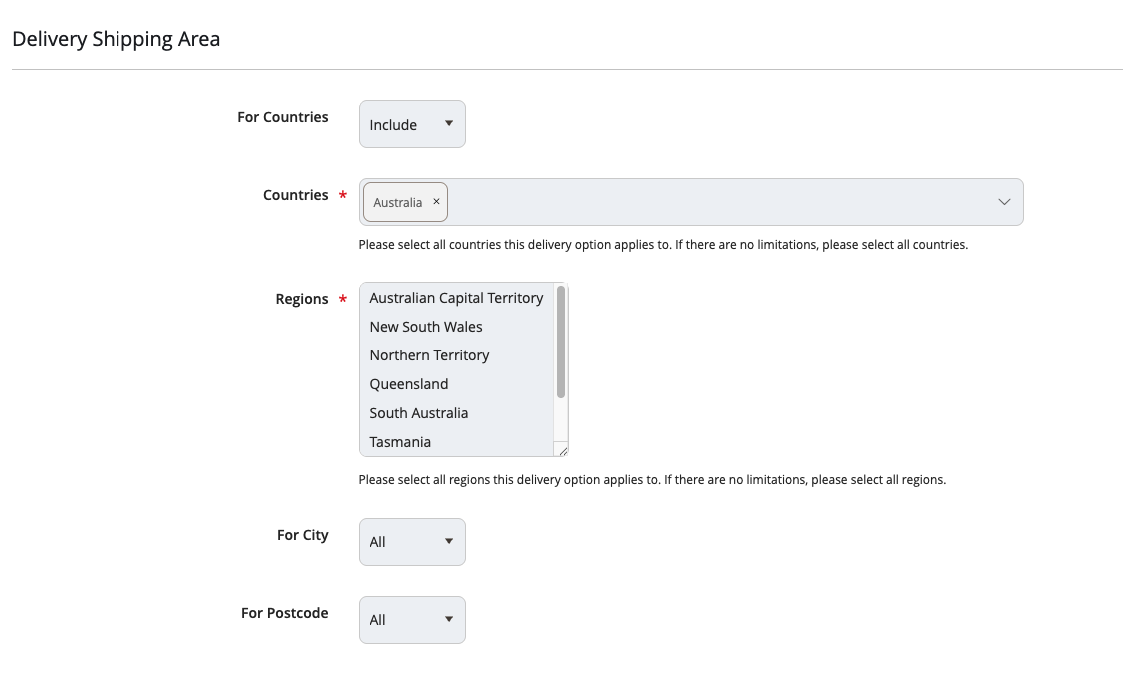
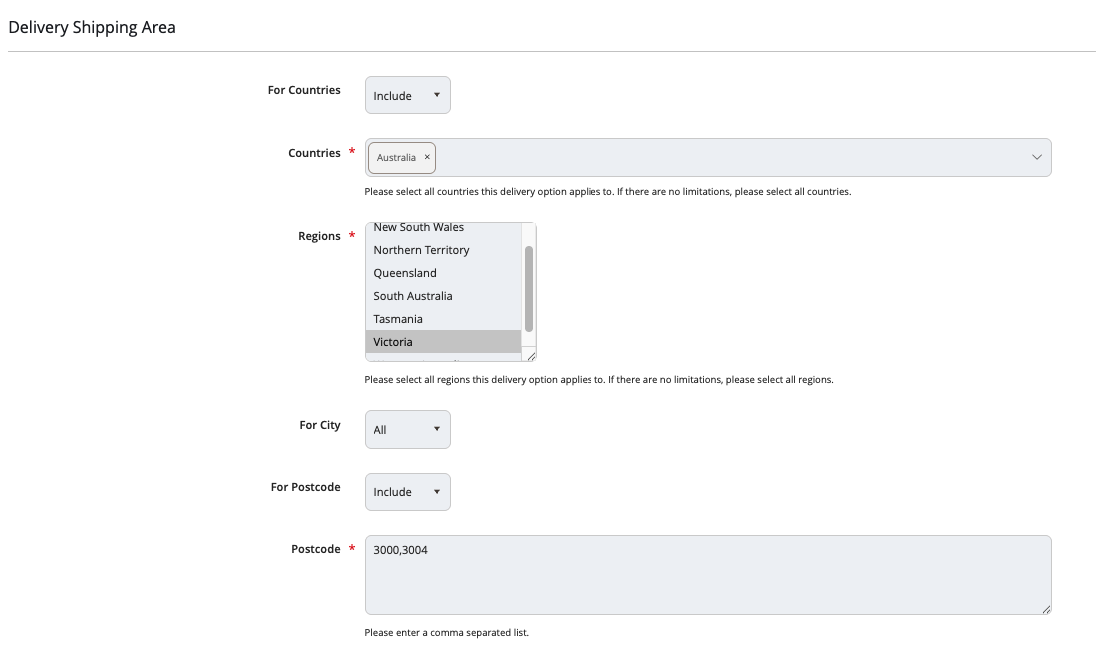
| For Countries | Dictates if you would like to set this Vendor Shipping Option to apply to specific Countries, or all available countries. Options:
|
| Countries | Select your country here for the Include or Exclude option. NOTE: While you can select multiple countries on this list - you will not be able to specify specific regions if multiple countries are selected. To have specific options for different regions in a country, a new Vendor Shipping Option will need to be created for those specific areas. |
| Regions | Please select all regions this delivery option applies to. If there are no limitations, please select all regions. NOTE:
|
| For City | If you are shipping to all cities, please leave All option as selected. If you are shipping / not shipping to specific cities, please select Include or Exclude, then enter them here in a comma separated list. |
| For Postcode | If you are shipping to all postcodes / zipcodes, please leave All option as selected. If you are shipping / not shipping to specific postcodes / zipcodes, please select Include or Exclude, then enter them here in a comma separated list.. |
Here is an example of the shipping area configuration. This shipping option is going to be offered to customers that are shipping in Australia, in the state of Victoria with the post codes 3000 or 3004. If the customer is shipping to any other country, state or post code, this option will not appear for them.
Save
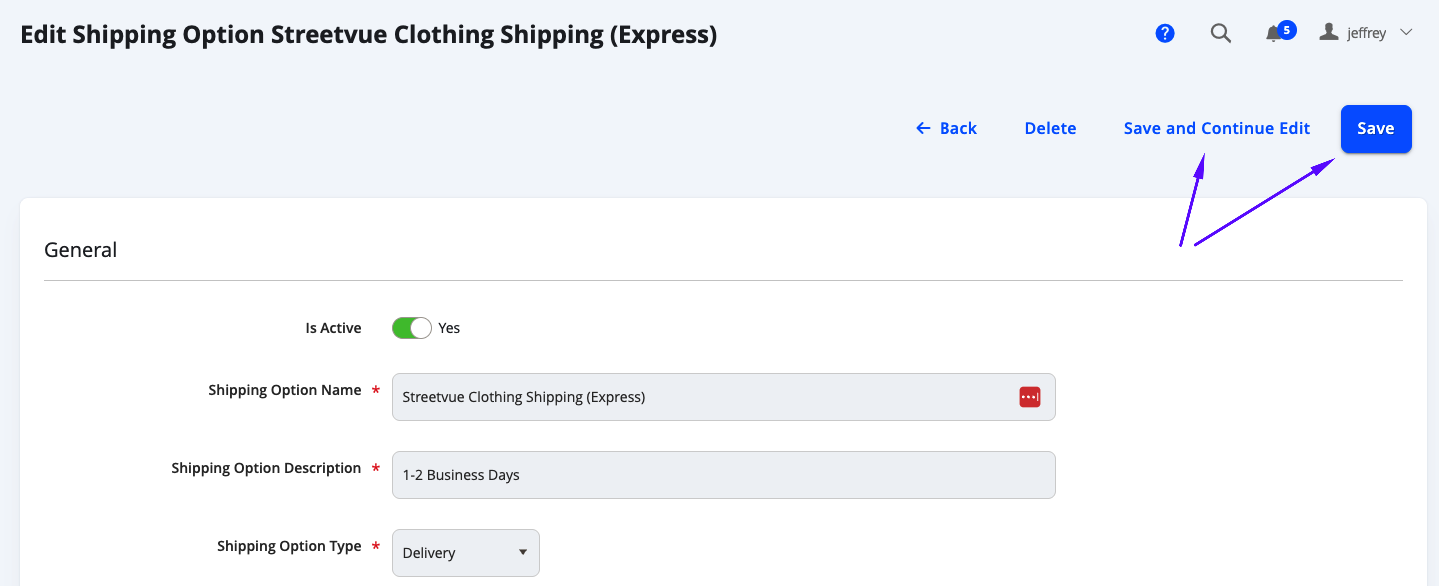
After inputting all options, select Save at the top right of the page to save your changes and be taken back to the Vendor Shipping Options grid, or select Save and Continue Edit to remain on this page after saving.
Front End Preview
Glyde
On Glyde controlled Marketplaces, the Vendor Shipping Options can be found during the checkout process at the Select shipping options stage.
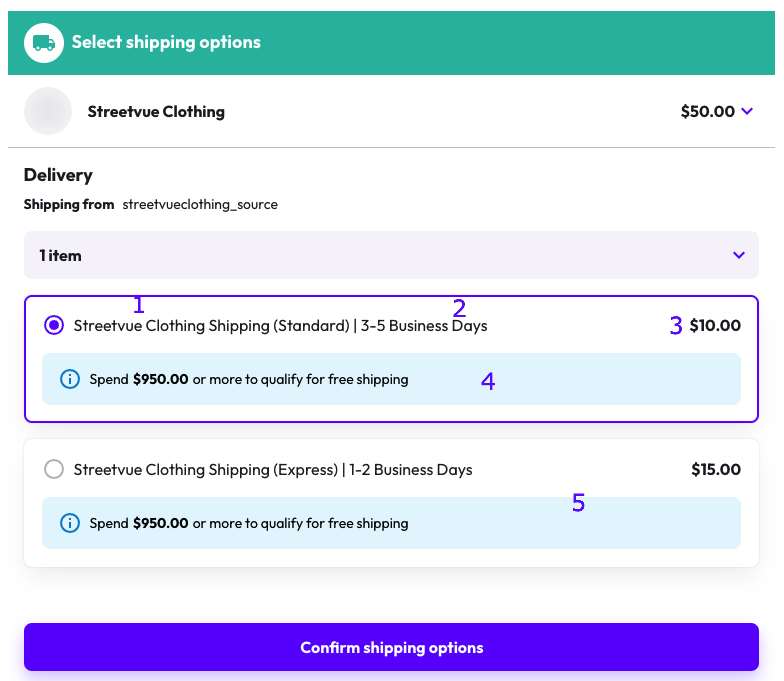
- This is the Shipping Option Name.
- This is the Shipping Option Description.
- This is the calculated Vendor Shipping Option Price, based on the Delivery Option Price.
- This is a Free Shipping Message, calculated and based on Free Shipping Threshold.
- Another example option from the same source / vendor.
Updated 6 months ago