
Understanding Vendor Types
Vendor Types enable Marketplace Owners to assign different vendor attribute sets and subscription plans to specific set of vendors. When vendors are subscribing to the Marketplace, the subscription plans available and information asked will be different for each Vendor Type created. This helps the Marketplace Owner to manage the marketplace and give different levels of permission to Vendors according to the types created.
Creating / Editing a Vendor Type
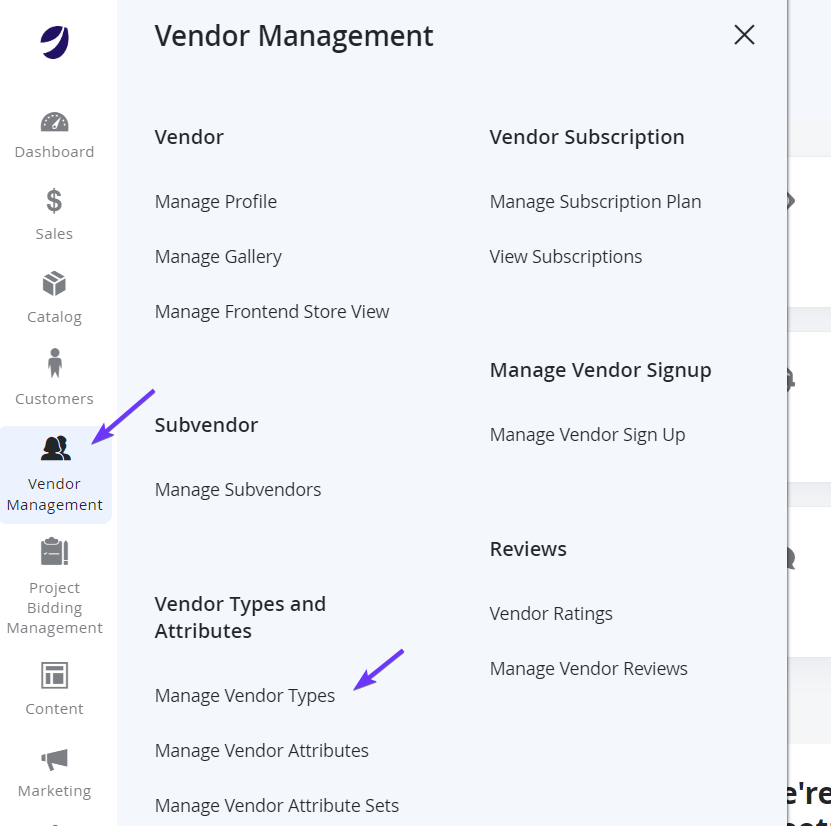
- Log in to Marketplace Admin Portal. On the Admin sidebar, go to Vendor Management > Vendor Types and Attributes > Vendor Types.
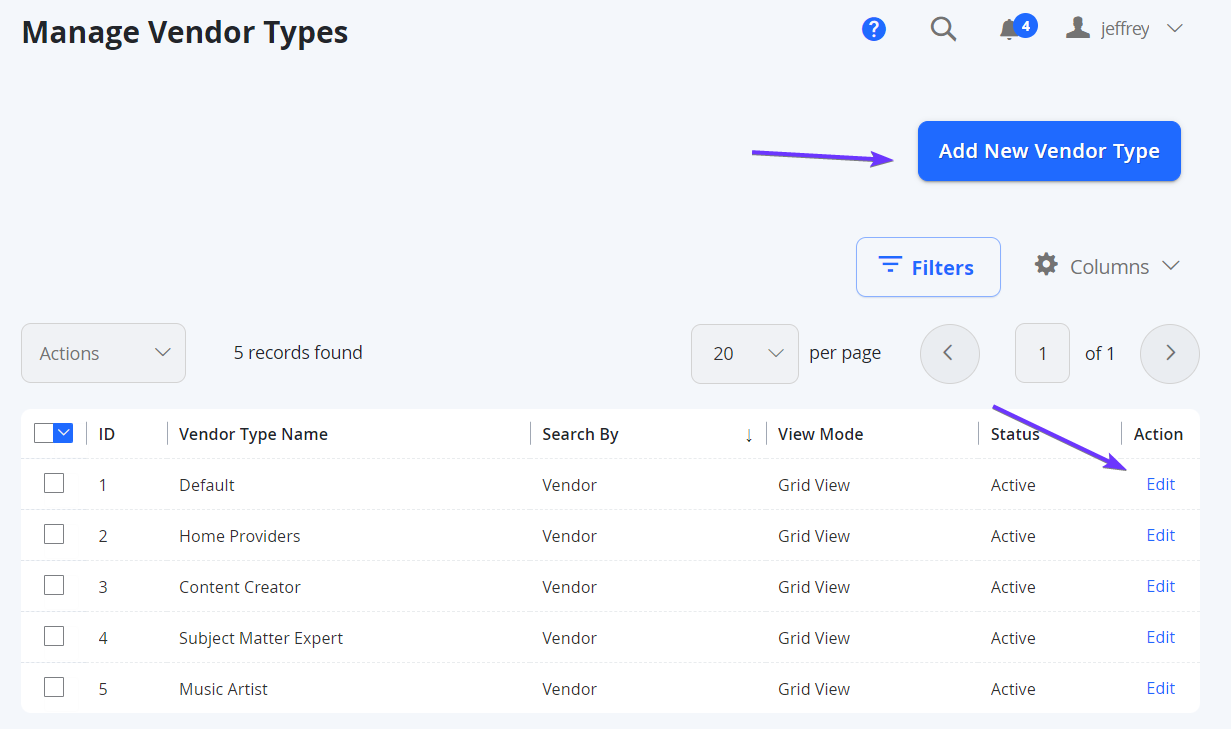
- A page will load a list of Vendor Types available. To create a new type, click on the top right button Add New Vendor Type. To edit an existing one, search the specific record and click on the right column under Actions > Edit.
Vendor Type Details Page
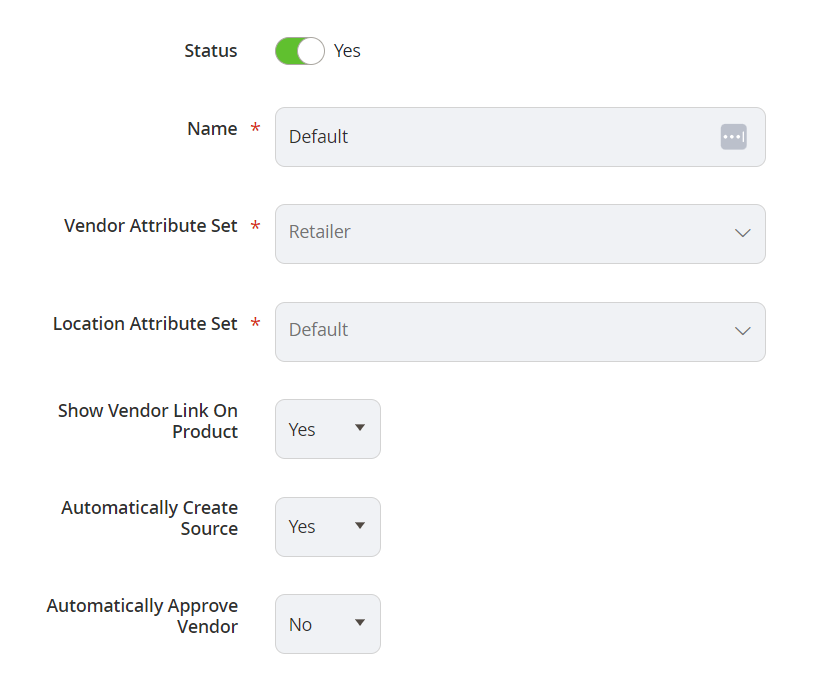
General Settings
| Field | Notes |
|---|---|
| Status | Select Yesto enable the Vendor Type |
| Name | Insert the name of this Vendor Type. This name will be used for the other steps, Backend and Frontend |
| Vendor Attribute Set | The dropdown list shows all active vendor attribute sets. Choose the Vendor Attribute Set that contains the vendor attributes required for this Vendor Type. The Vendor Attribute Set needs to be created prior to this step. |
| Location Attribute Set | This can be ignored - this is a deprecated feature |
| Show Vendor Link on Product | This will allow the Vendor Profile tile to display on Product pages. |
| Automatically Create Source | Upon approval of the vendor, create a source automatically for the vendor's inventory. NOTE: The address will not carry across. This will need to be keyed in manually. |
| Automatically Approve Vendor | When a vendor applies to this Vendor type, they will not need to be approved manually by the Marketplace Owner - the system will approve them. |
Vendor Type Search Configuration
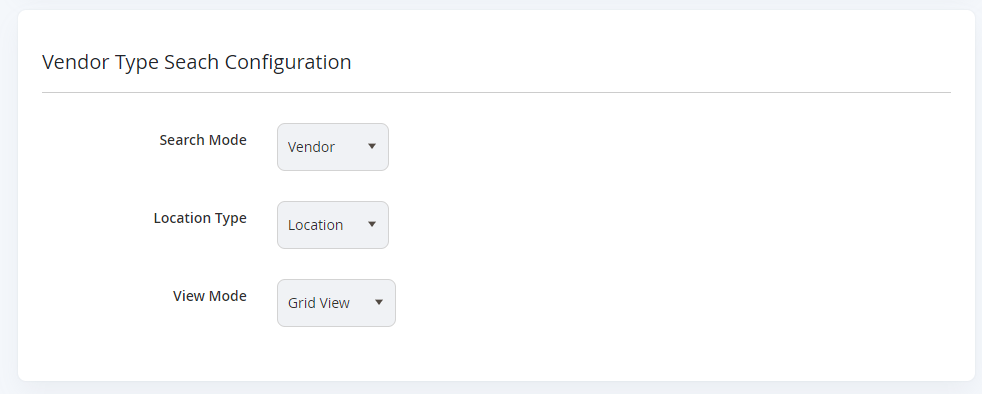
You can leave these settings as default.
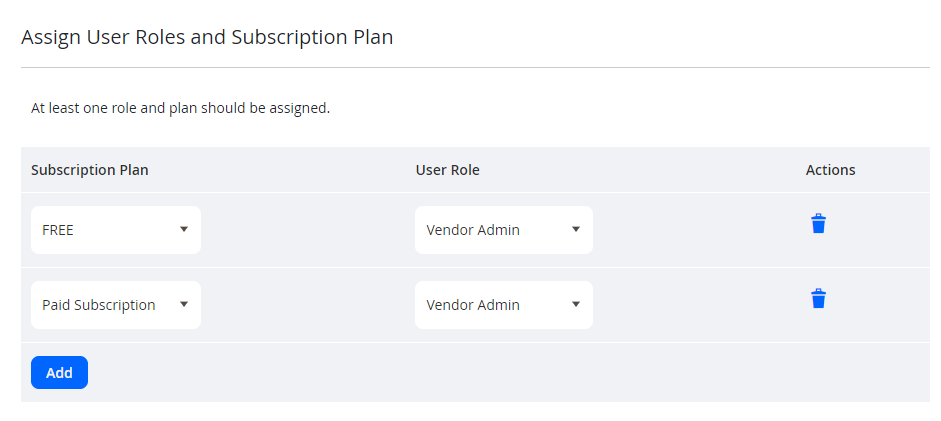
Assign User Roles and Subscription Plan
| Field | Notes |
|---|---|
| Subscription Plan | Choose a Subscription Plan from the dropdown to assign to the Vendor Type. |
| User Role | Choose a User Role that vendors will have when they subscribe to a plan. |
| Action | You can select the Bin icon to remove the row plan from the Vendor Type |
| Add | You can select the Add button to add another row plan for the Vendor Type |
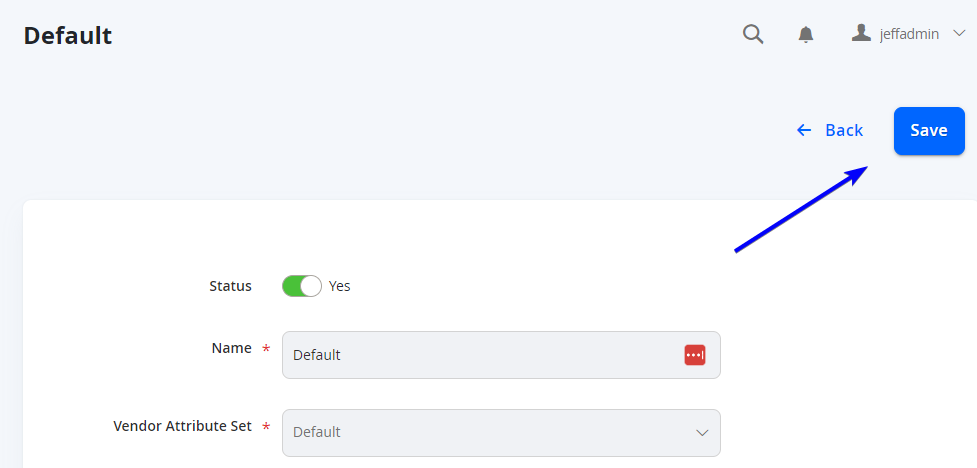
To save any changes, select Save from the top right.
Updated over 1 year ago
Did this page help you?