
Fulfilling Orders from the Admin Portal
This feature uses the out of the box Ship functionality
Eligible Shipping Methods
Fulfilling products from the Admin Portal can be actioned with the following shipping methods.
- Flat Rate Shipping
- Free Shipping
- Vendor Shipping Options
NOTE
If there are any integrations (eg Fuse) that perform fulfillments from a third party, this may not be the process to follow as it may interfere and cause issues with connected shipments. Please ensure you use the correct method to prevent issues.
Shipping products from the Admin Portal
This can be done by the Marketplace Owner, or the Vendor. Vendors will only be able to ship their own products from the order.
-
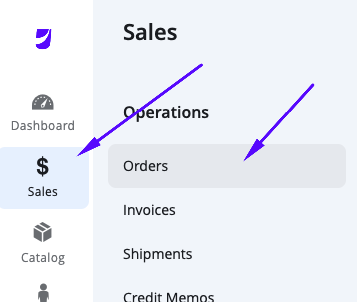
From the Admin Portal main menu, navigate to Sales > Operations > Orders.
-
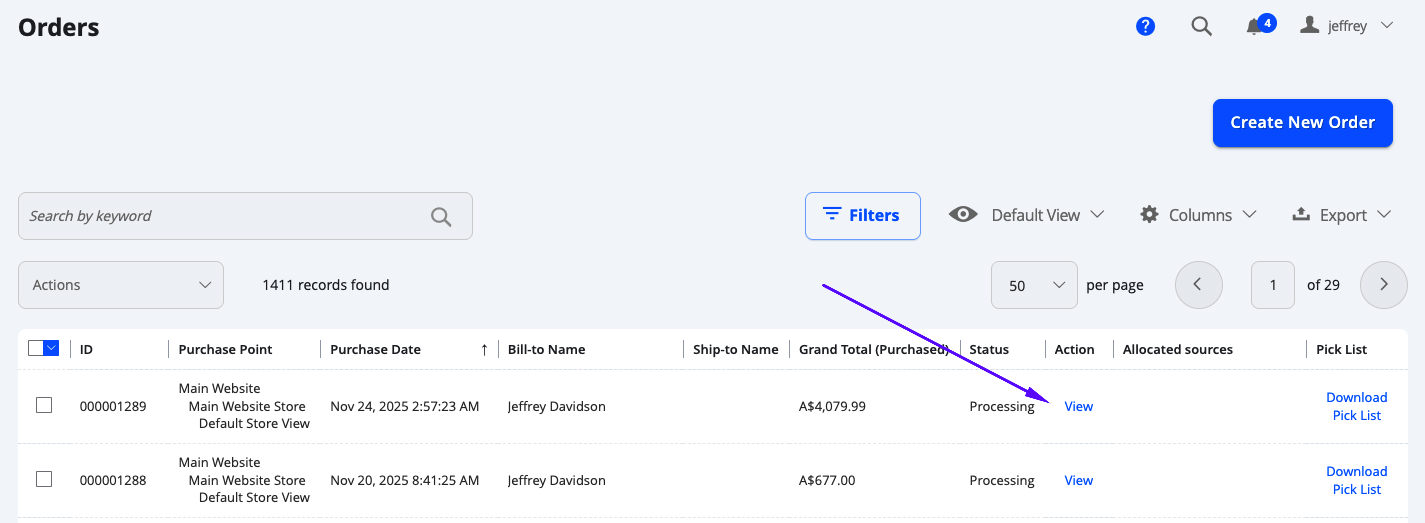
Find an order that requires shipping (typically these orders would be in the Processing status) and select Action > View.
-
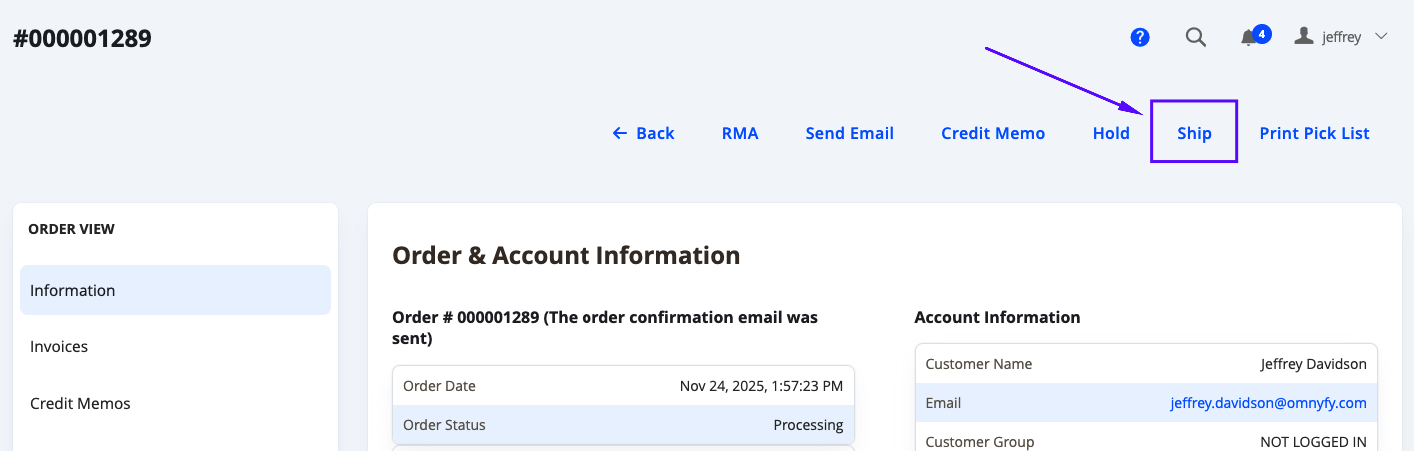
When the order details page loads, you will find a link to Ship at the top right.
**NOTE: **
If you are logged in as a Vendor and do not see Ship from the top right of the order in Processing status, this may be an order that contains other vendors that have yet to fulfill their products. Check your order items and see if there are any products that have not yet been shipped or refunded, and if there are none, you may ignore this order.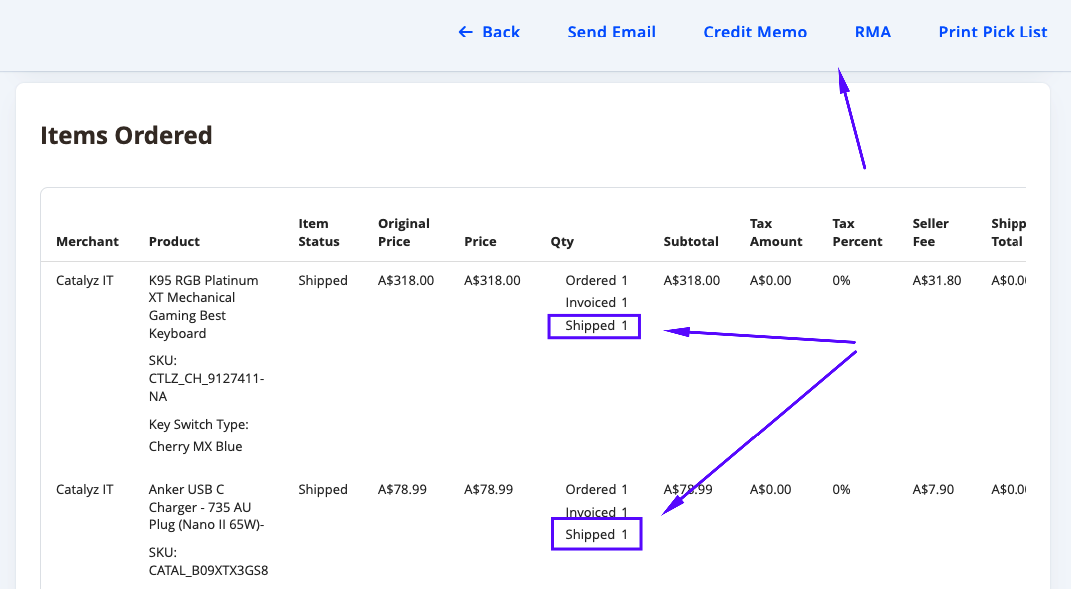
-
You will then be taken to the Source Selection page. Here you will see all sources available to ship from. Vendors will only be able to see their own sources associated to the products that have stock.
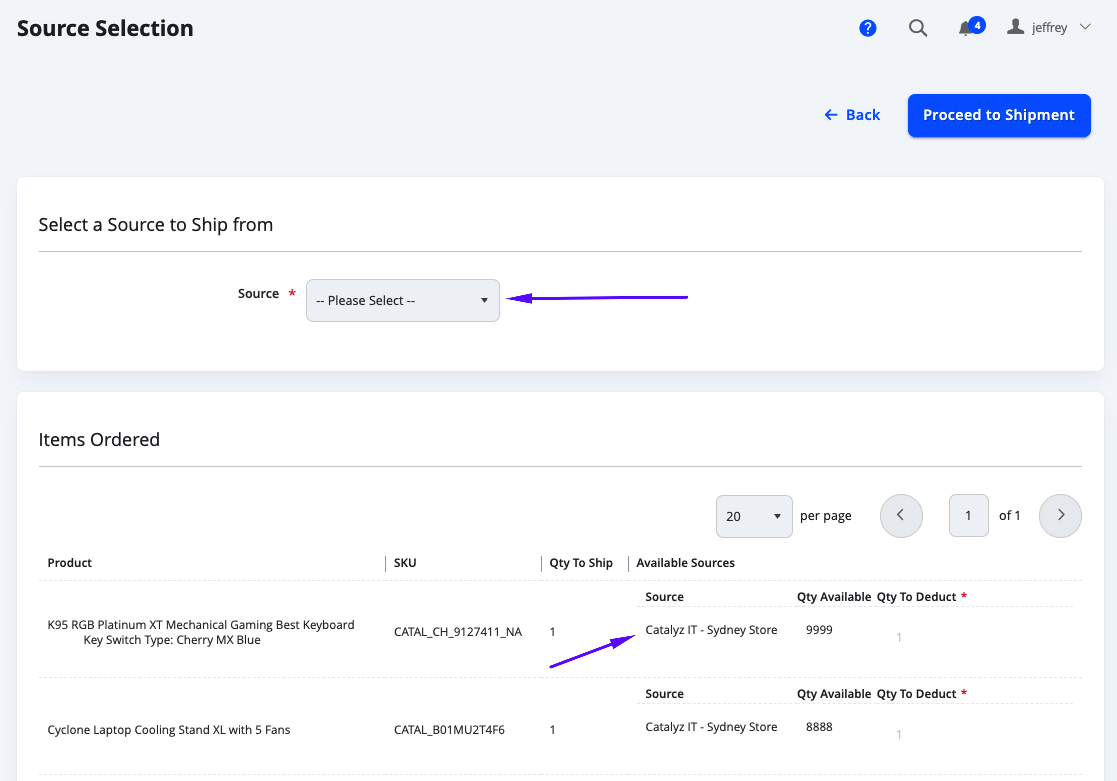
Select a Source, then select Proceed to Shipment from the top right.
NOTE:
When you select a source, you can edit how many products to deduct on the Items Ordered grid below (it takes the Qty to Ship as the default value from however many is left to fulfill). This can still be edited in the next step if you have enough Qty Available for that source.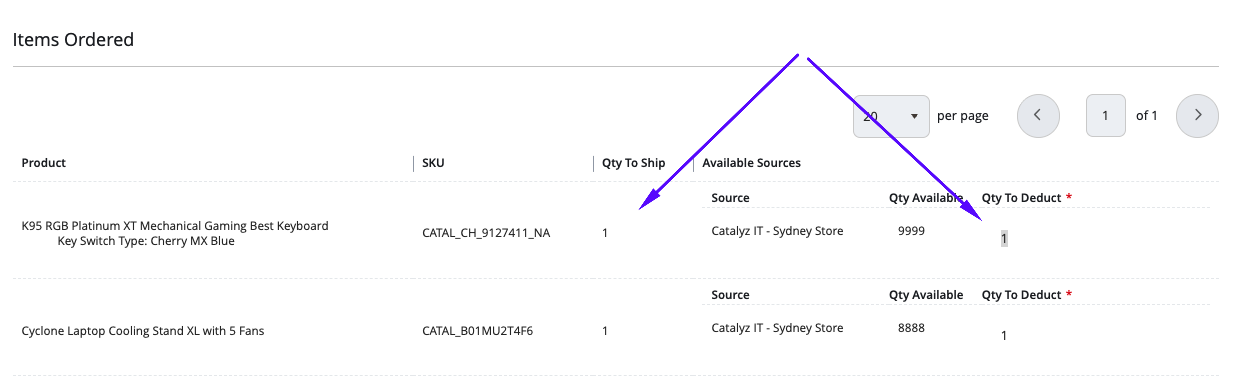
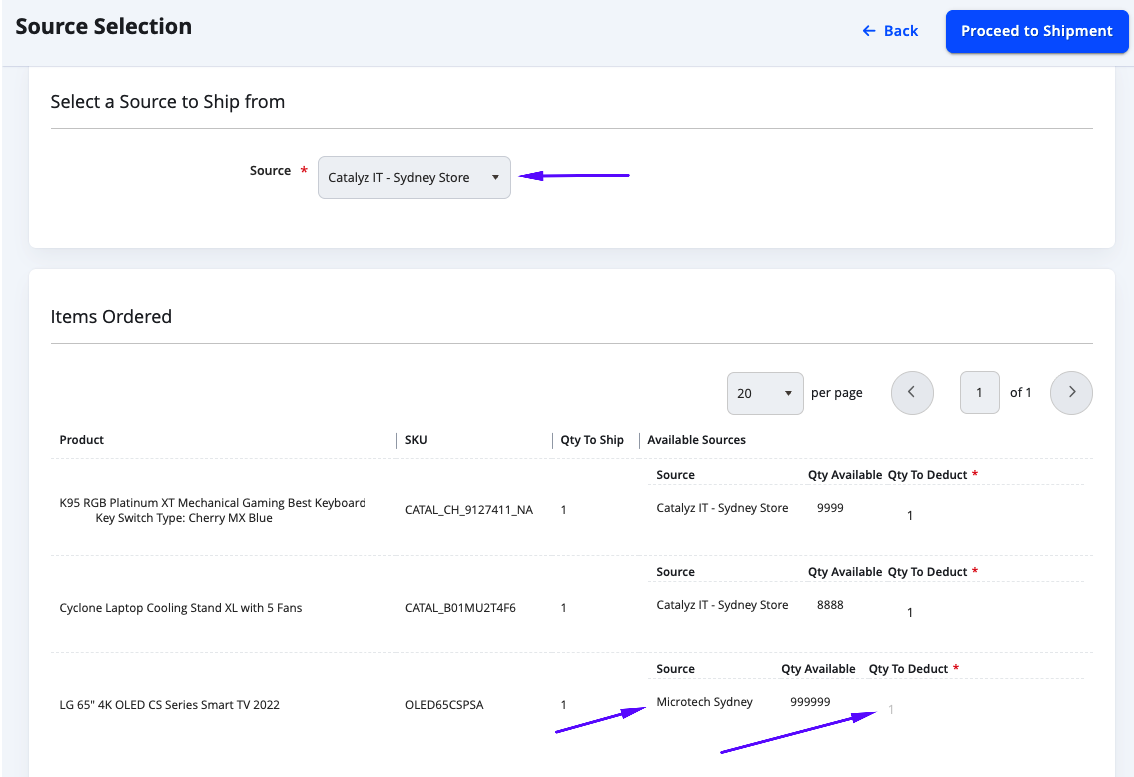
If you select a Source that is not available with some products on the order, it will grey out the selection for Qty To Deduct.
-
This will create a New Shipment. A lot of the page will contain the same information from the Order details page.
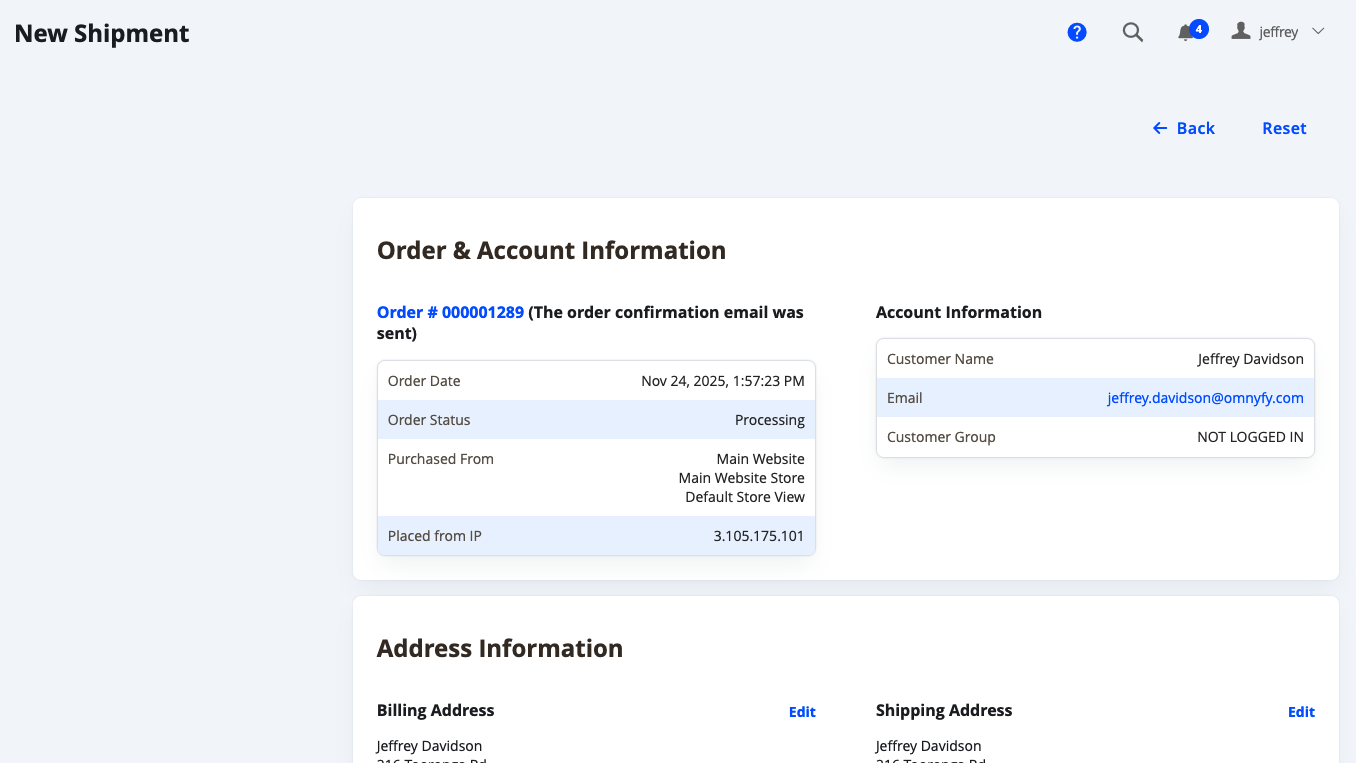
Scroll down and you can find where to add Tracking information for the shipment.
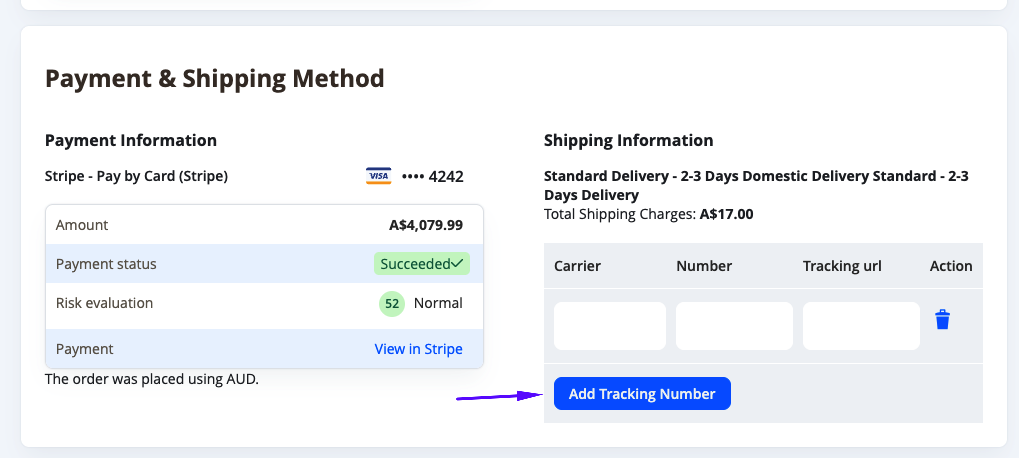
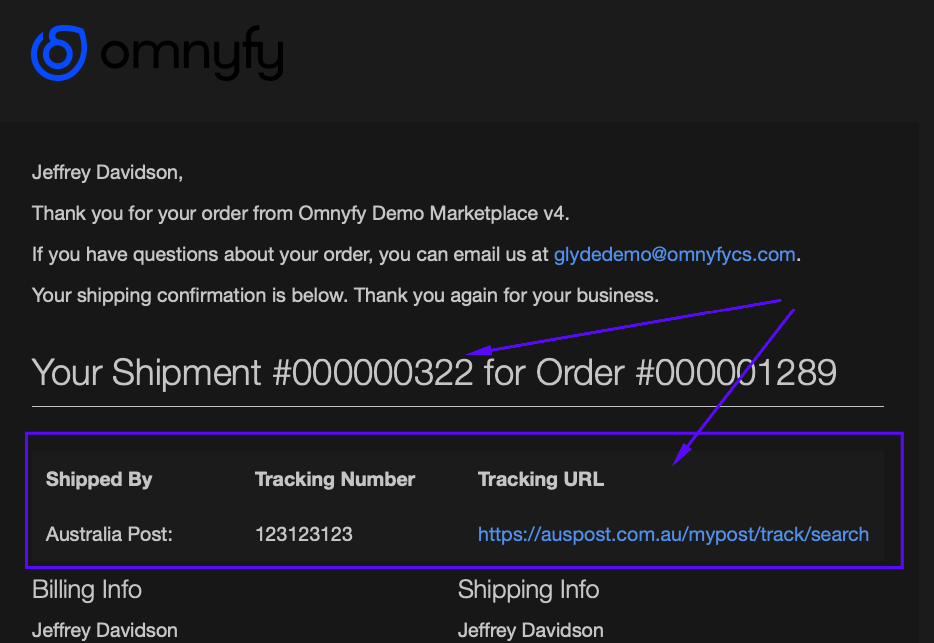
These Tracking details will be provided to customers through the shipment notifications via e-mail.
-
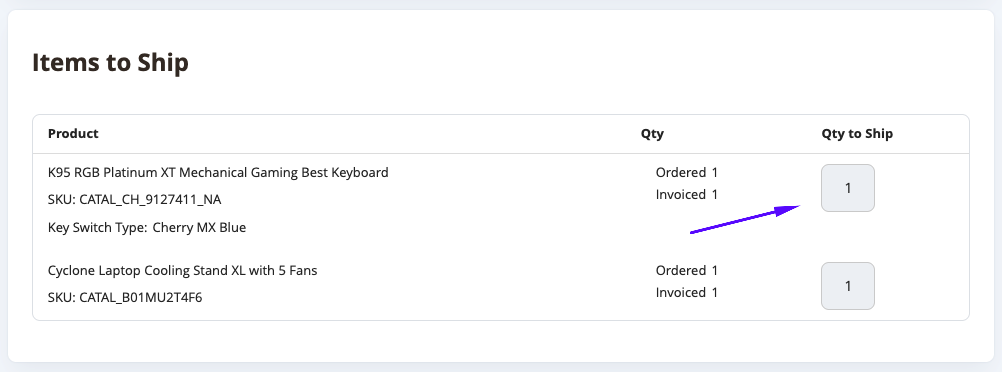
Scrolling further down, you can edit which products (and their quantity) to be shipped in this shipment. By default, it will take the number that is yet to be fulfilled / actioned).
-
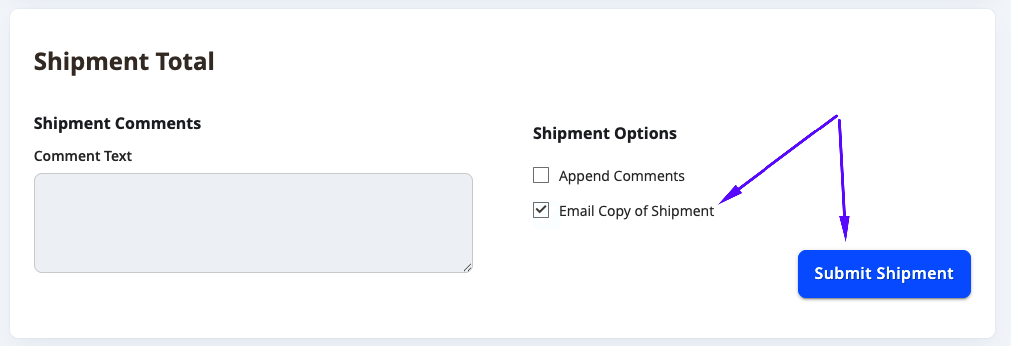
The bottom of the shipment page will contain the last 2 steps. Ensure that you have selected in Shipment Options > Email Copy of Shipment. This will notify the customer of the shipment, which will include details provided from the Tracking Information. Once you have finalised everything, select Submit Shipment.
-
Once submitted, you will be taken back to the Order details page.
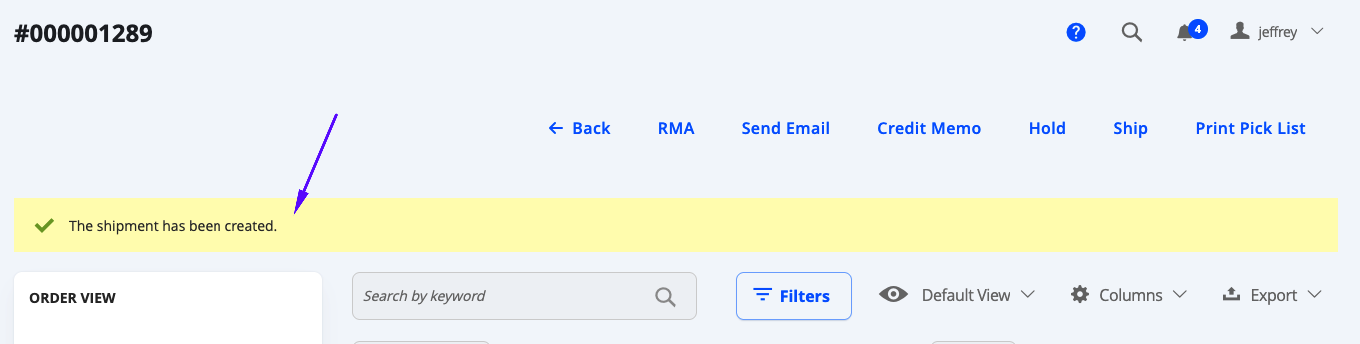
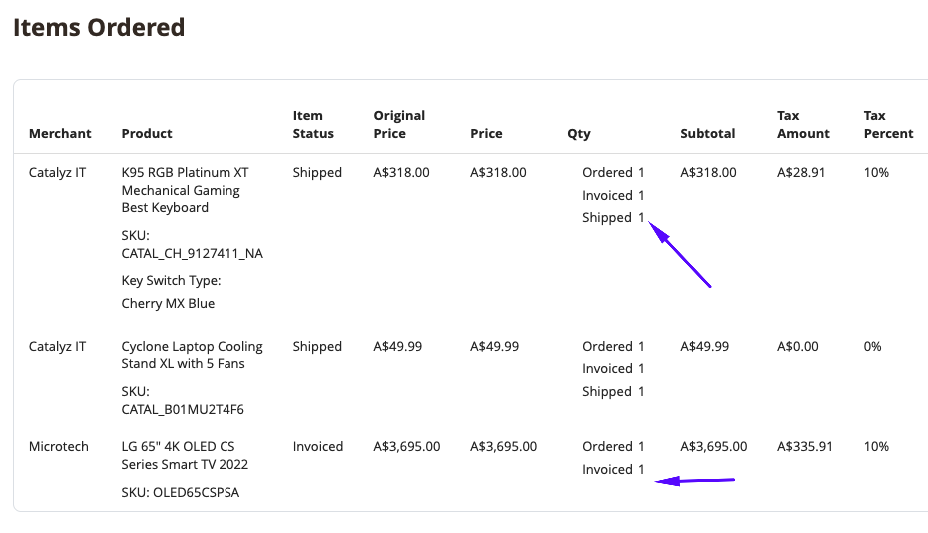
If you scroll down this page, you can check the Items Ordered, and find the products now have Shipped in the Qty column. Items still pending action will not have this and still need fulfillment.
Customer Notifications
If you have selected Email Copy of Shipment, this will send a notification email to the customer after selecting Submit Shipment. This email will contain (if added) any Tracking information added during the Shipment creation step.
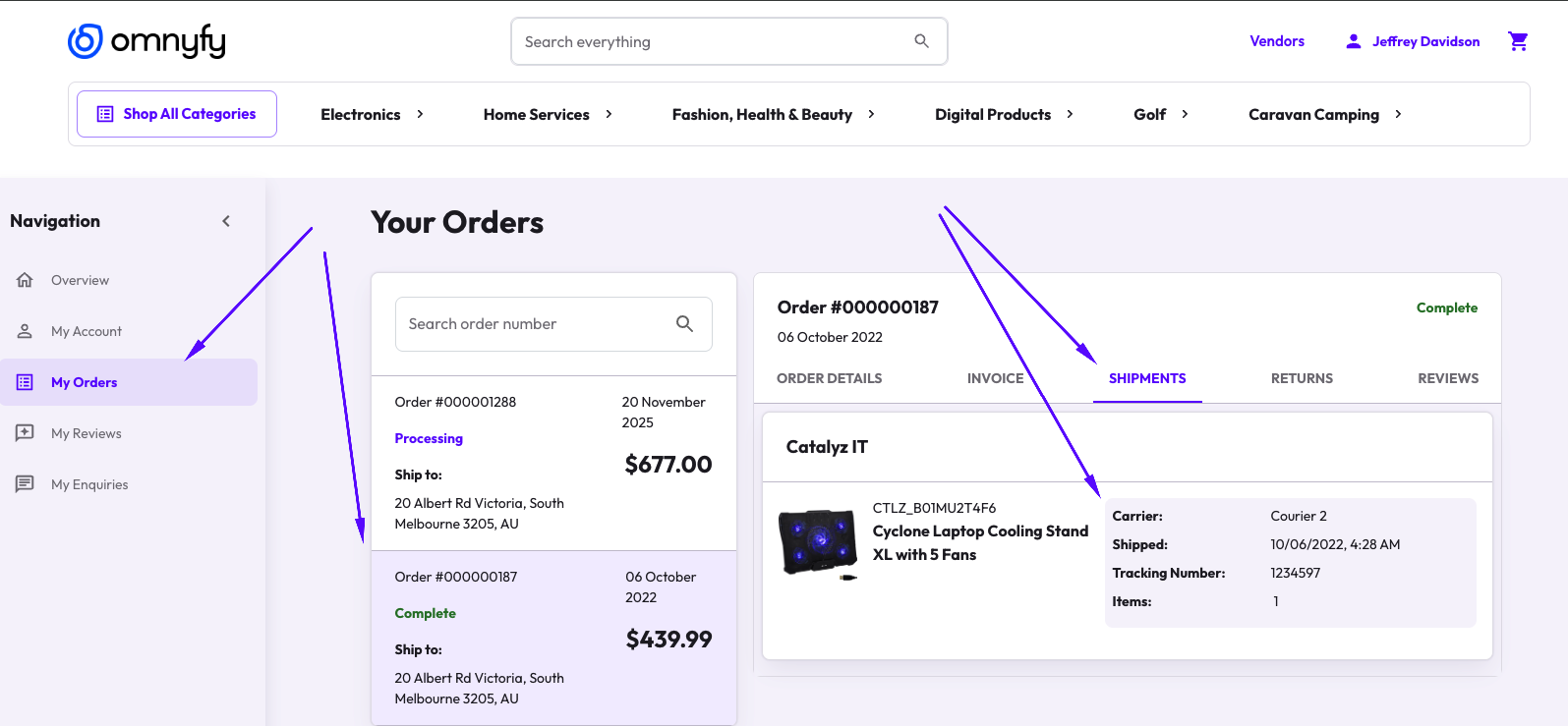
If the customer is also registered on the Marketplace, they can find their shipment information alongside the Order Details in Customer Dashboard > My Orders > Shipments.
Checking your Shipments from the Admin Portal
As a Marketplace Owner or Vendor, you may check all Shipments that were fulfilled on the Marketplace from 2 main places.
From the Order Details Page
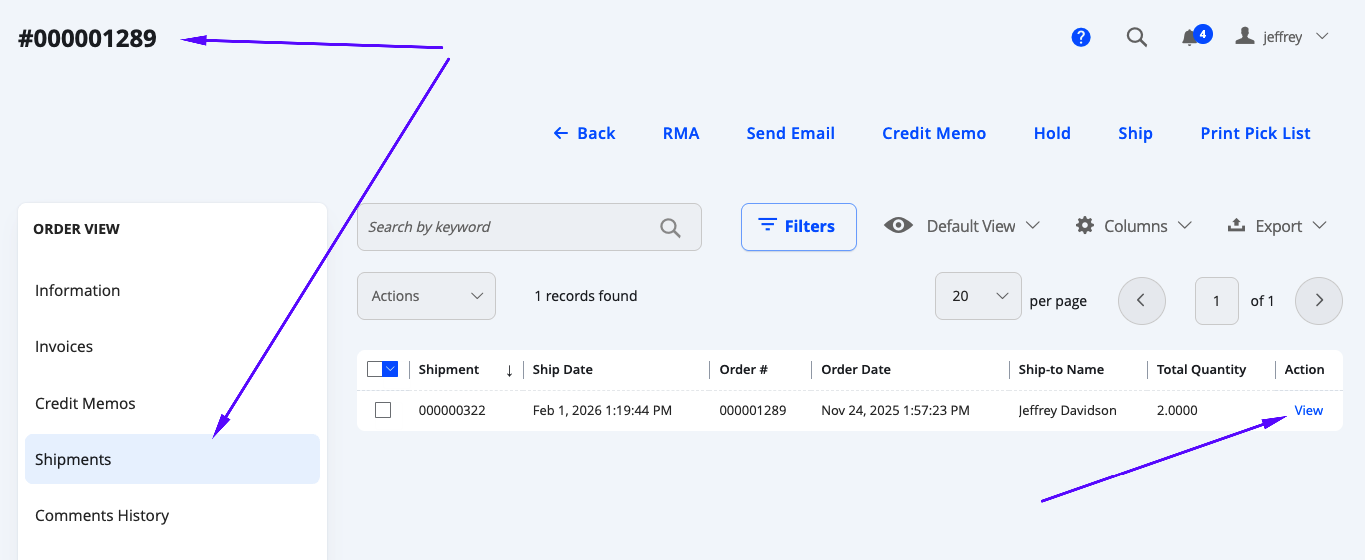
From the order details page (from within Sales > Operations > Orders), you can check any shipments for a specific order through the Shipments tab on the left.
NOTE:
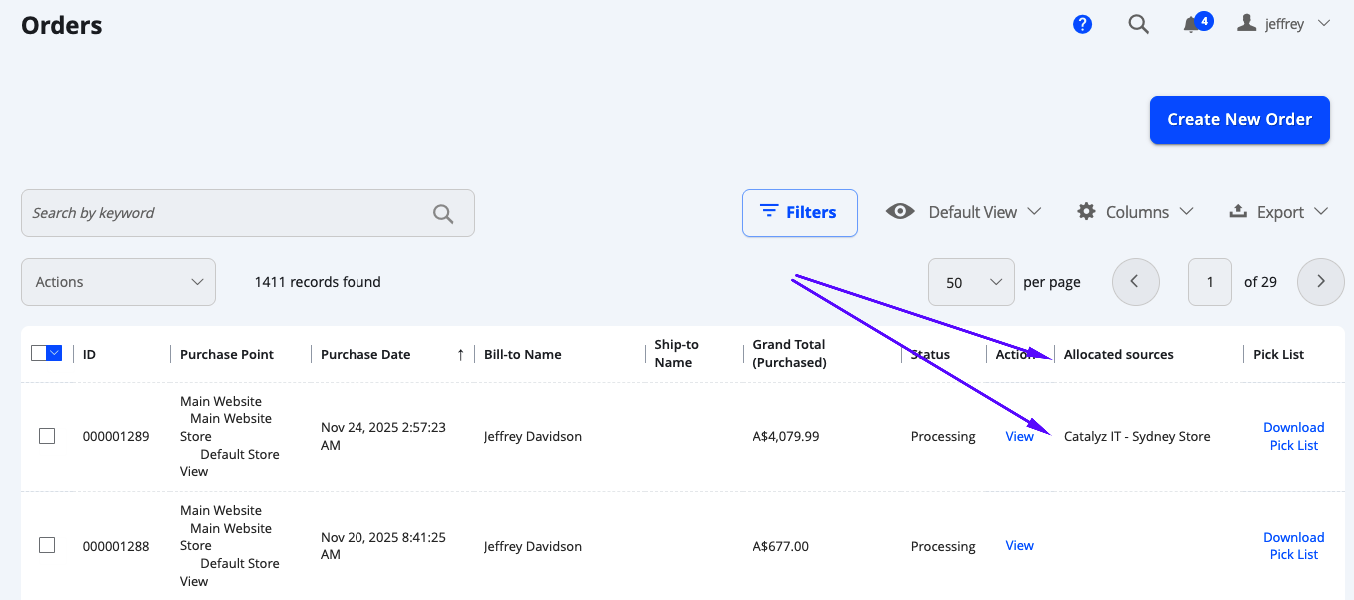
You may also see from the Order Grid which sources have already had fulfillment for the order if any.
From the Shipments grid
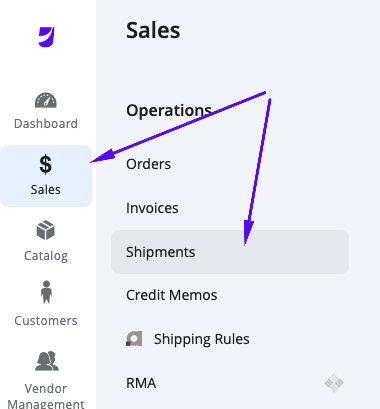
If you are looking for a specific Shipment, you can search through all the Shipments from the Marketplace from Sales > Operations > Shipments.
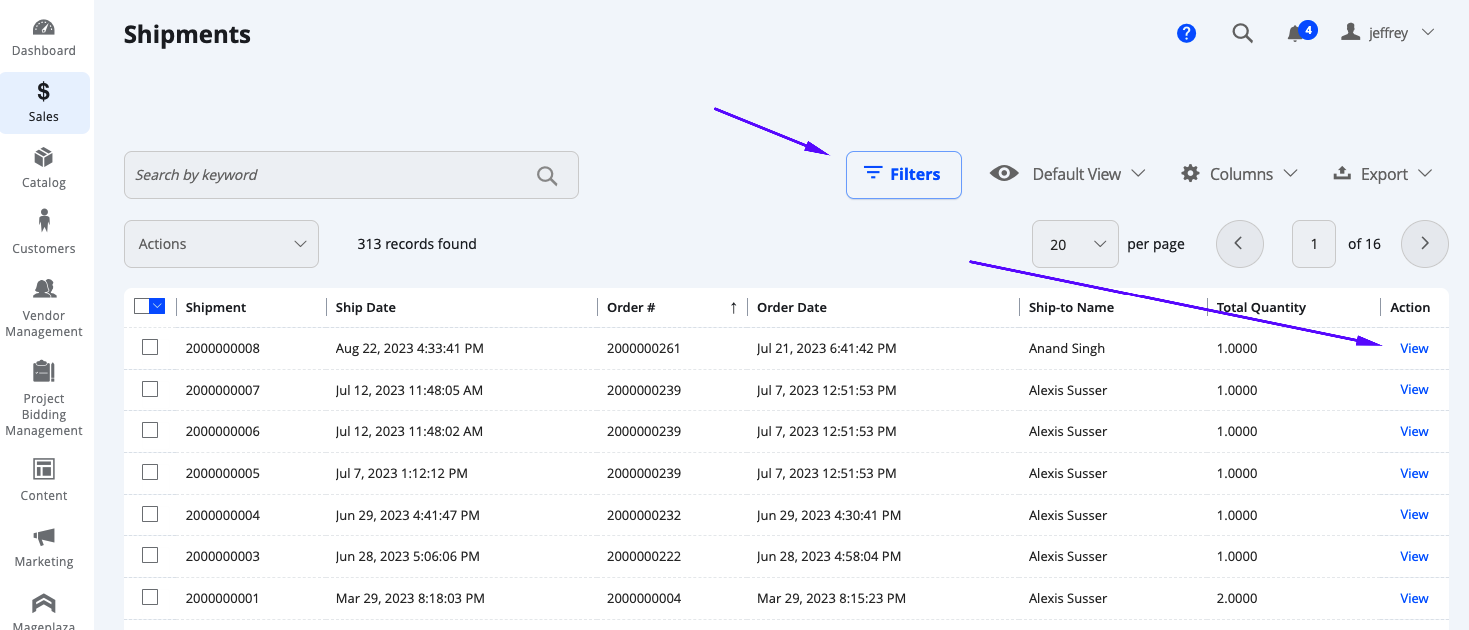
This will load the Shipment grid. Select Action > View on any of the Shipments on the grid to view the details (clicking on the shipment itself. You may use the Sort or Filters functions to help find the specific shipment .
Shipment Details Page
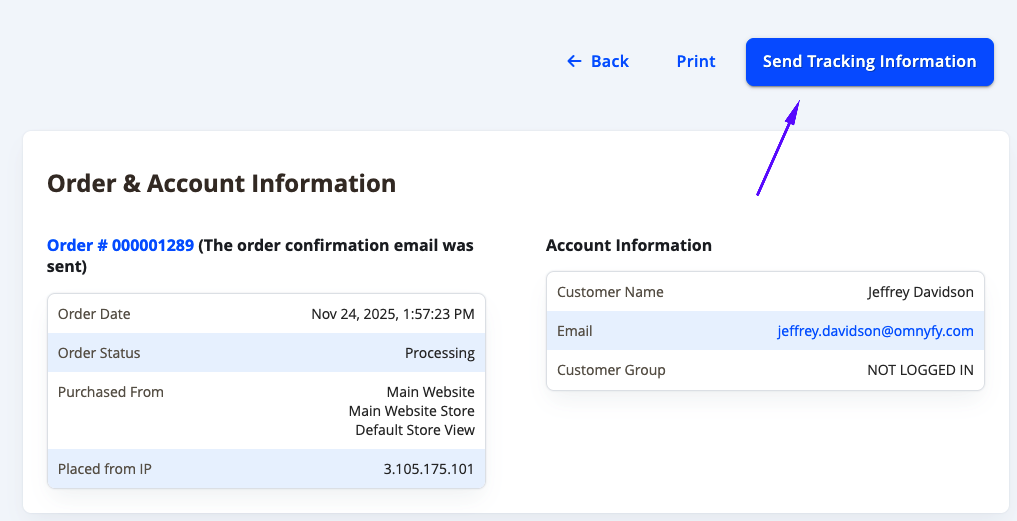
When viewing a Shipment, you will be able to see basic order details, customer information associated with the order, and the products that were shipped (alongside Tracking information if it was provided). If you need to resend the Shipment to the customer again, you can simply select Send Tracking Information from the top right.
Updated 8 months ago